
This guide explains how to enable and configure AI Smart Tracking on the Microseven 4MP Indoor PTZ camera (Model: M7D4MP-PTZ4X-WPSAA).
AI tracking allows the camera to automatically follow human movement and zoom in on detected targets.
Step 1 — Position the Camera
Go to Main Menu → Live View.
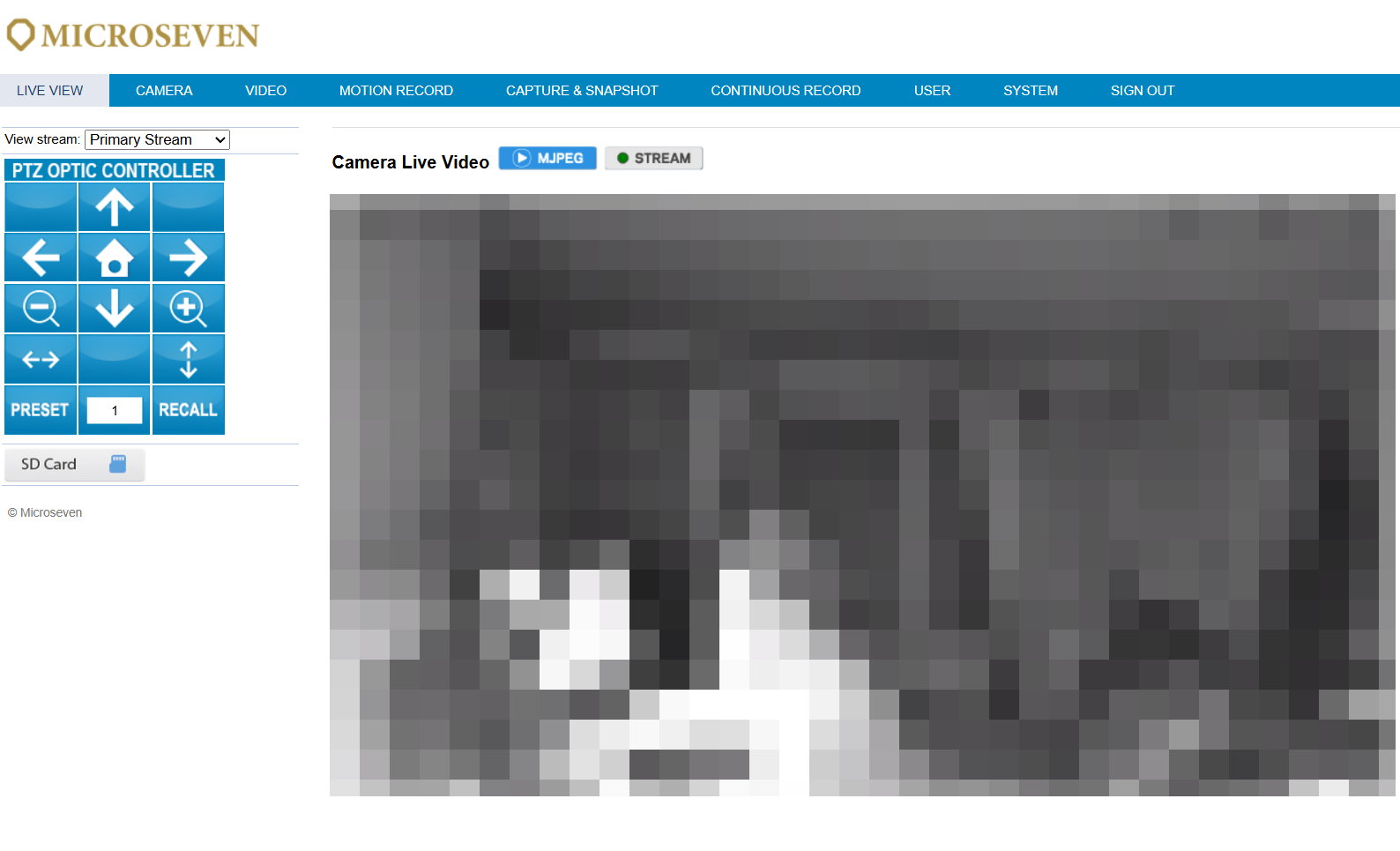
Using the PTZ Optic Controller panel on the left side:
• Move the camera up, down, left, or right
• Aim at the area where you want tracking to work
• Adjust zoom if necessary
Step 2 — Configure Motion Detection
Go to:
Main Menu → Motion Record → Motion Detection Record
Section 1 – Set Motion Detection Zones
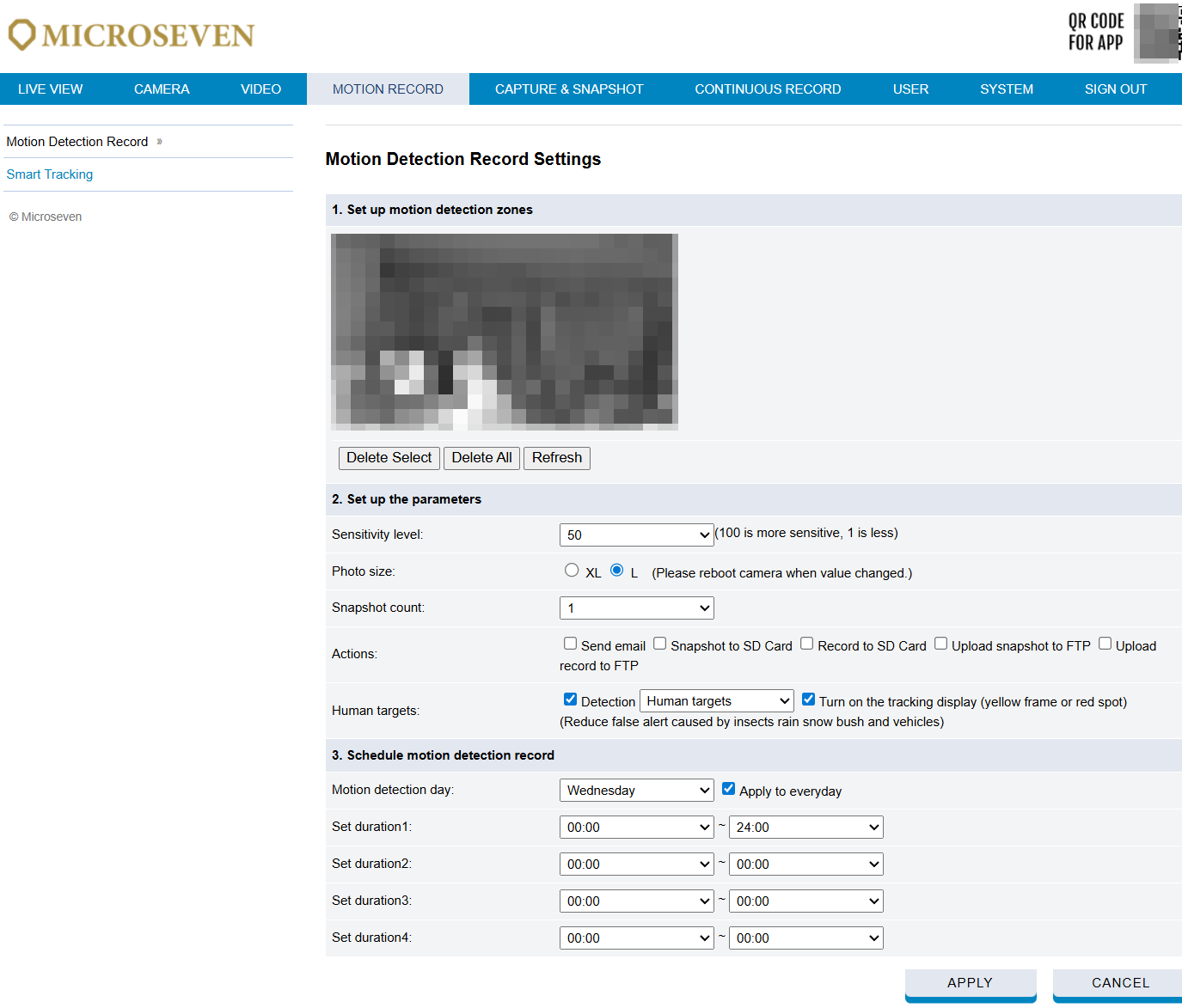
• Draw detection areas directly on the preview image
• You can create up to 4 zones
• Use:
- Delete Select
- Delete All
- Refresh
to manage zones
Section 2 – Set Detection Target Type
Under Human Targets, choose:
• Human Targets (detects people only)
• Human & Vehicle Targets (detects both people and vehicles)
This reduces false alerts caused by:
- Rain
- Snow
- Insects
- Moving trees
Step 3 — Enable Smart Tracking
Go to:
Main Menu → Smart Tracking
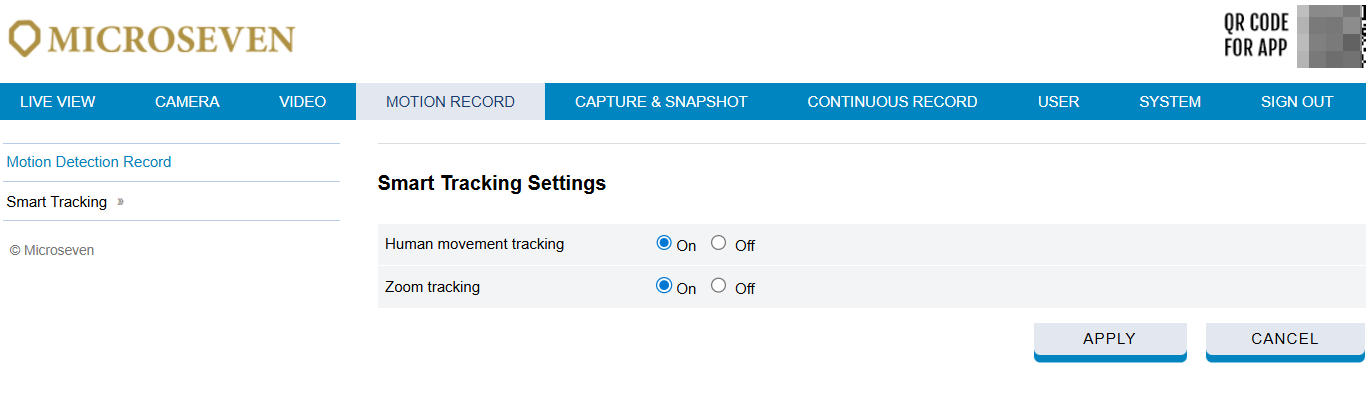
Enable:
• Human Movement Tracking → ON
• Zoom Tracking → ON
Click Apply to save settings.
Setup is now complete.