
These models feature true 14X optical zoom and built-in Active Deterrence Lights, allowing the camera to automatically detect, follow, and deter human movement in real time. (Model: M7D4K-PTZV14X-WPSAA | M7D5MP-PTZV14X-WPSAA)
Step 1 — Access Camera Setup
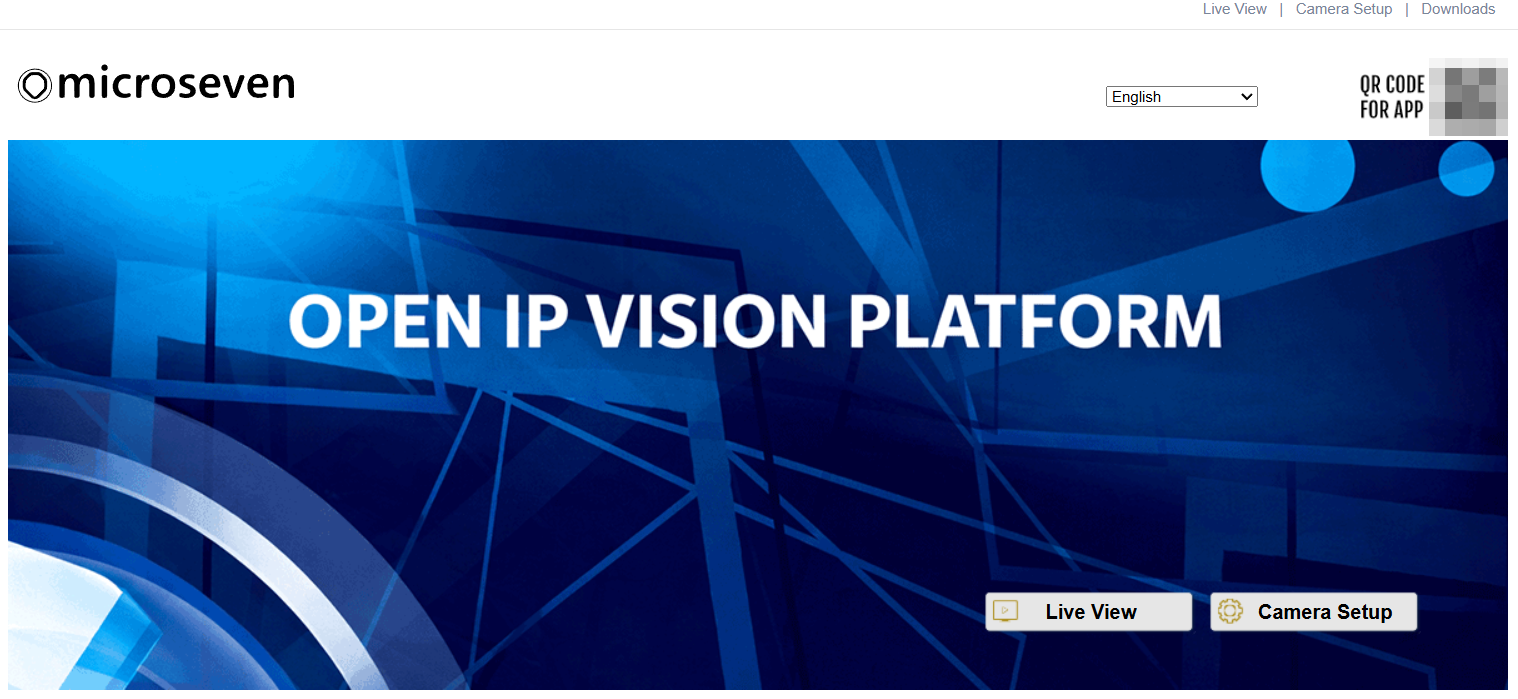
After logging in to the camera’s web interface in your browser, click the Camera Setup button on the home screen.
Step 2 — Configure Motion Detection Settings
Go to Main Menu → Motion Record, then click Motion Detection Record in the left sidebar.
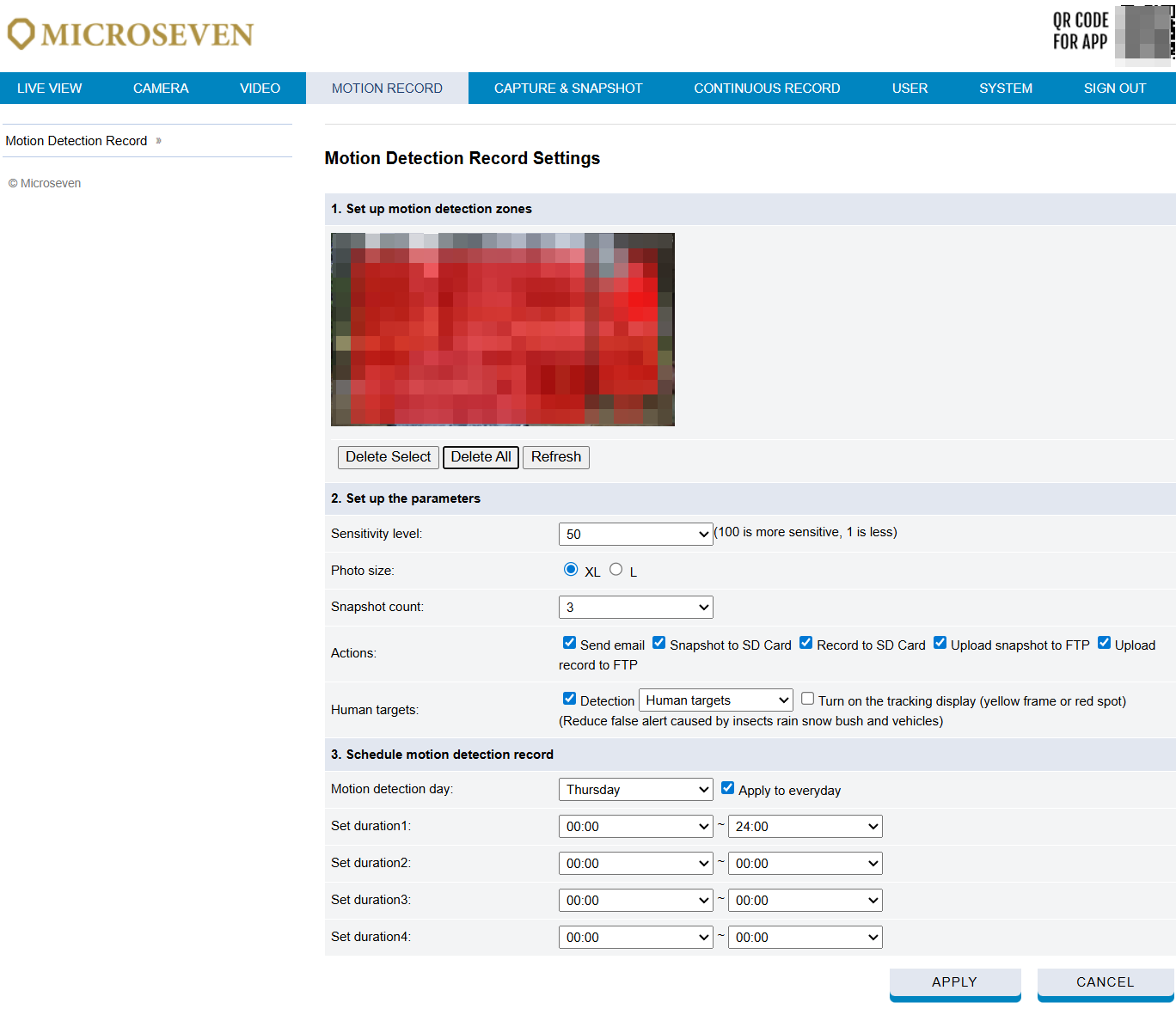
Section 1 — Motion Detection Zones
Draw your desired detection area(s) directly on the camera preview image. You can define up to 4 zones. Use the Delete Select, Delete All, or Refresh buttons to manage your zones.
Section 2 — Detection Target Type
Under Human Targets, check the Detection checkbox and select one of the following:
- Human Targets — detects people only
- Human & Vehicle Targets — detects both people and vehicles
- Human & Pet Targets — detects both people and pets
This helps reduce false alerts caused by insects, rain, snow, bushes, and other environmental factors.
Step 3 — Set Home Position & Enable AI Auto Tracking
Go to Main Menu → Live View. Using the PTZ Optic Controller panel on the left, aim the lens to the desired home position — the area you want the camera to monitor and return to after each tracking event.
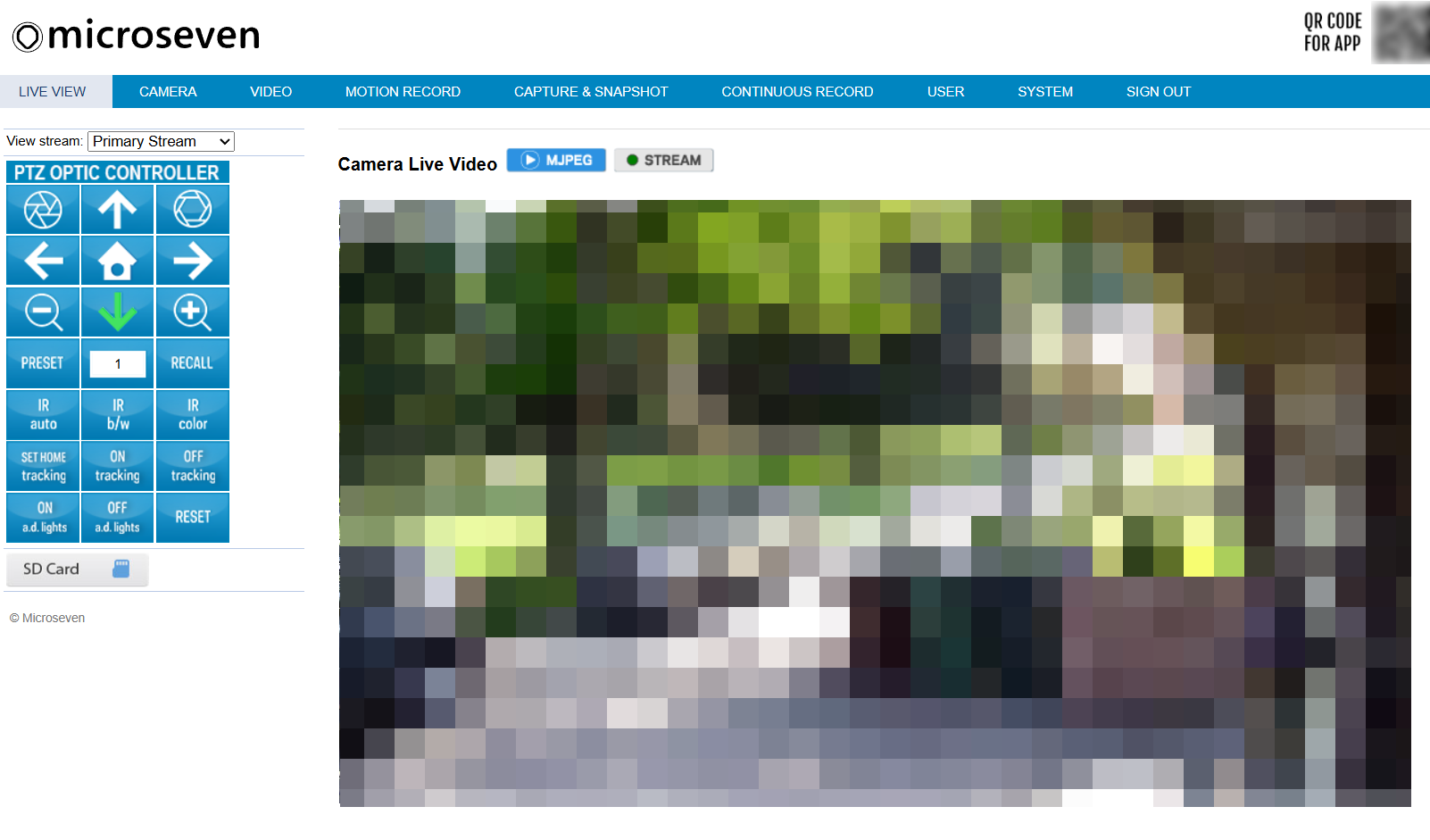
Once positioned, click SET HOME tracking to save this as the camera’s home position. After any AI tracking event is completed, the camera will automatically return to this home position in approximately 60 seconds.
Finally, click ON tracking once to activate AI auto tracking. The camera will now automatically detect and follow human movement. To stop tracking at any time, click OFF tracking.
💡Tip: If anything goes wrong during setup, click the RESET button on the PTZ Optic Controller panel, wait 1 minute, then start the setup again from the beginning.
Step 4 — Active Deterrence Lights
This camera is equipped with built-in Active Deterrence Lights located at the top of the lens. By default, the lights are turned ON. You can toggle them on or off at any time using the ON a.d. lights and OFF a.d. lights buttons on the PTZ Optic Controller panel in Live View.