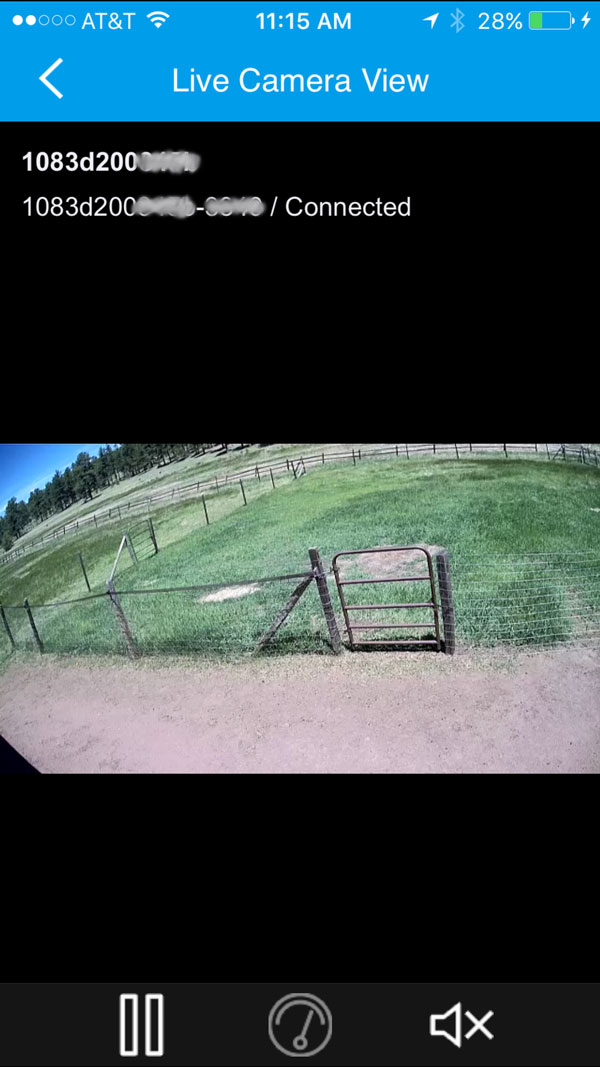
How to add a camera to the app manually?
Before starting to add a camera to the app manually, CamID, camera credential userID, and password must be ready.
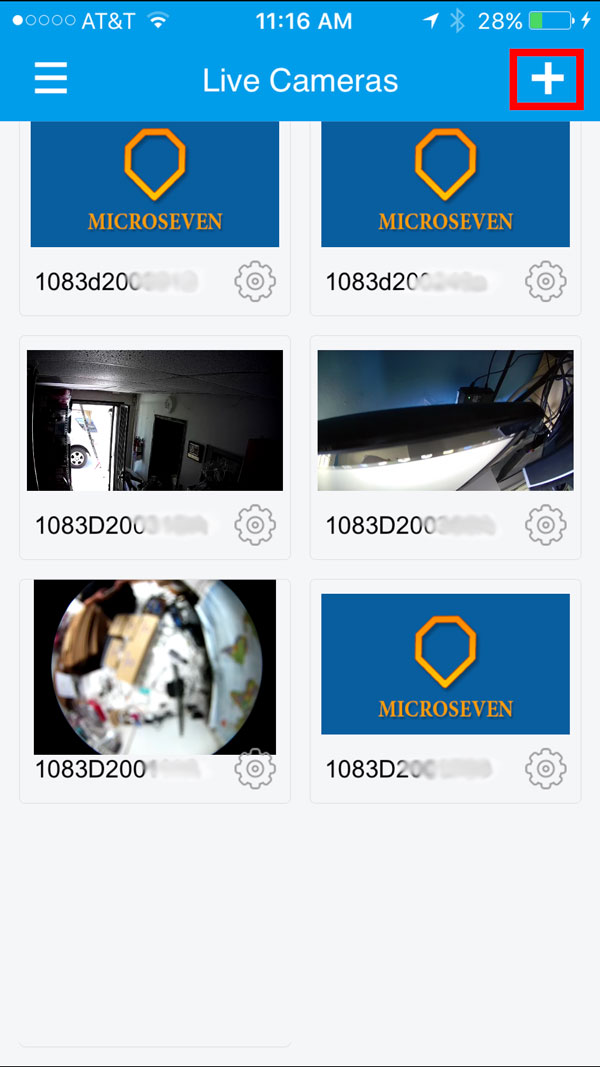
1. Add camera in the app, click on “+” at the right top corner of the screen:
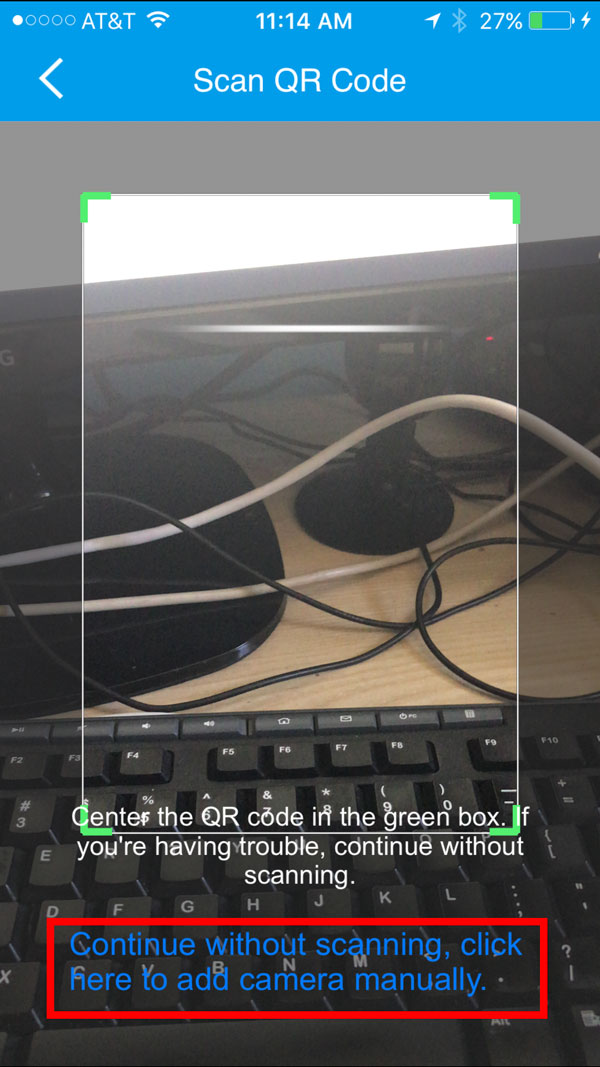
2. Select manually add a camera without scanning a QR code:
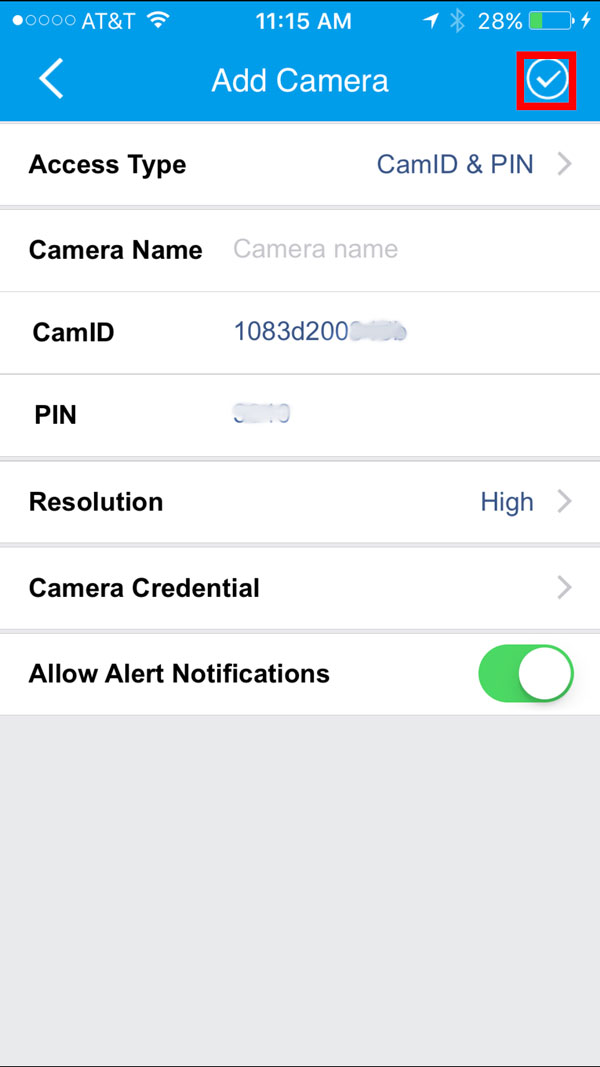
3. Enter a camera CamID and PIN. Then click on the Camera Credential button:
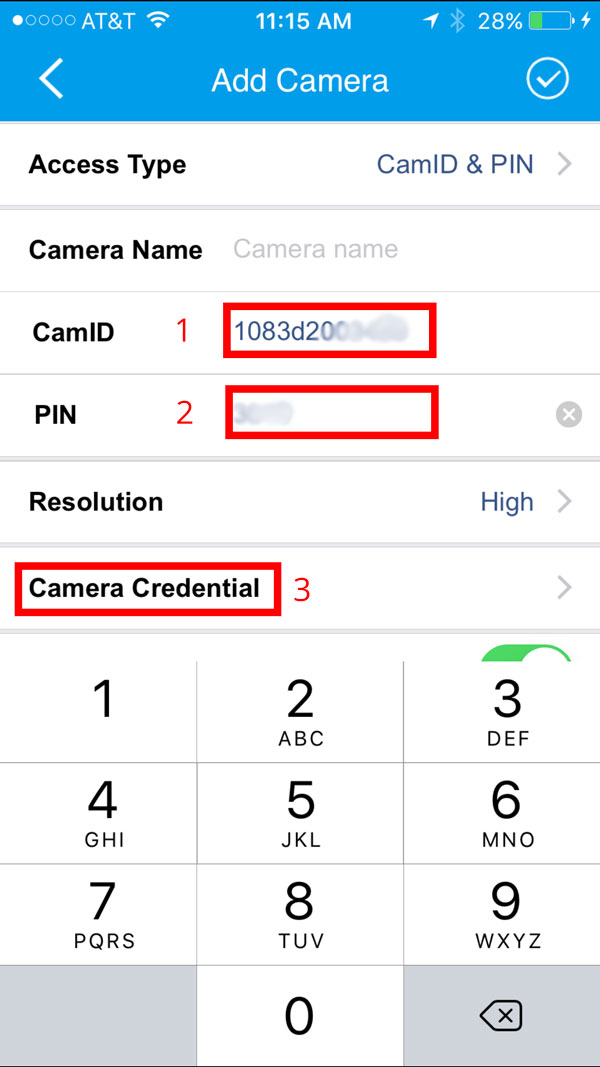
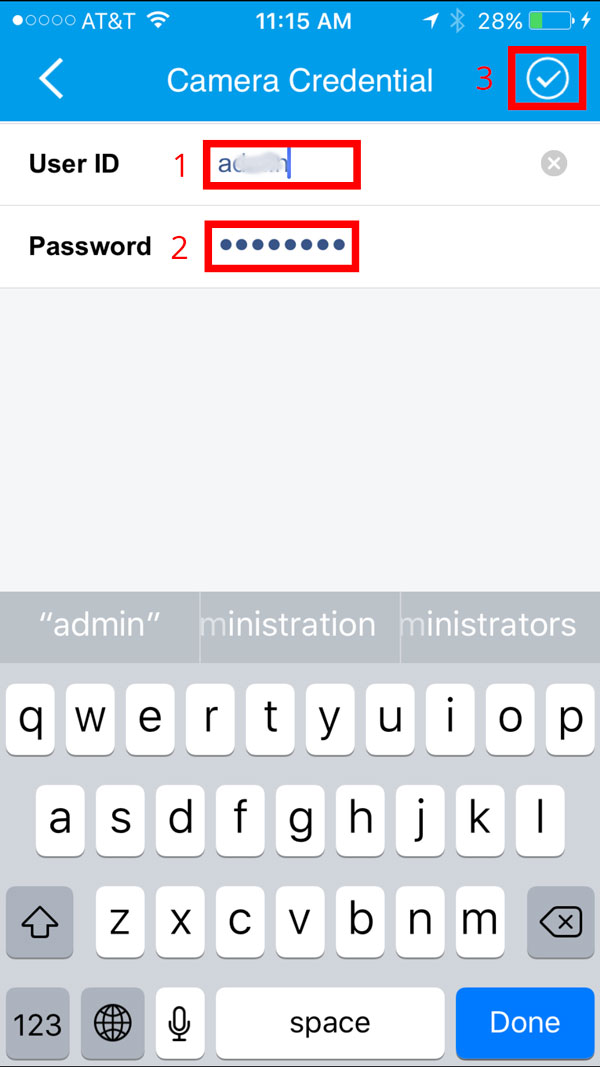
4. Enter a camera credential:
If the default userID and password are used, click the ‘check mark’ in the top-right corner to save. Otherwise, enter the new userID and new password. Default UserID and password are ‘admin’ and ‘password.’
5. Click on the “check mark” to save the settings when they are done:
6. A camera added in Live Cameras:
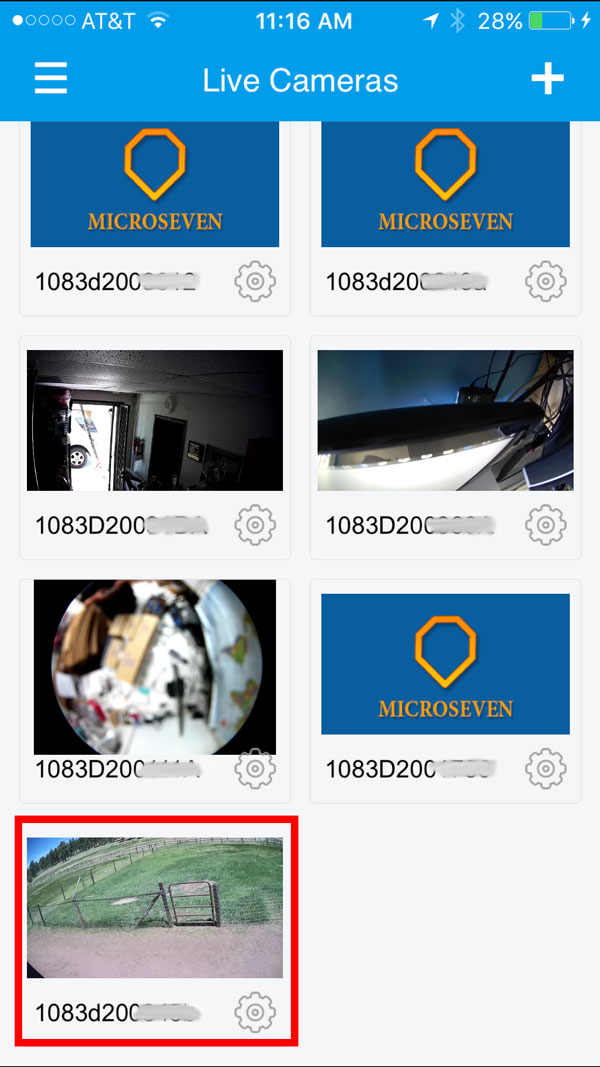
7. Play the live feed video: