
How To Add Camera To App And Retrieve Playback From Cloud Video Recorder

Step 1: Download app from the App Store or Google Play store.

Download “Microseven” app from App Store or Google Play store, install it on the device (your phone or pad)
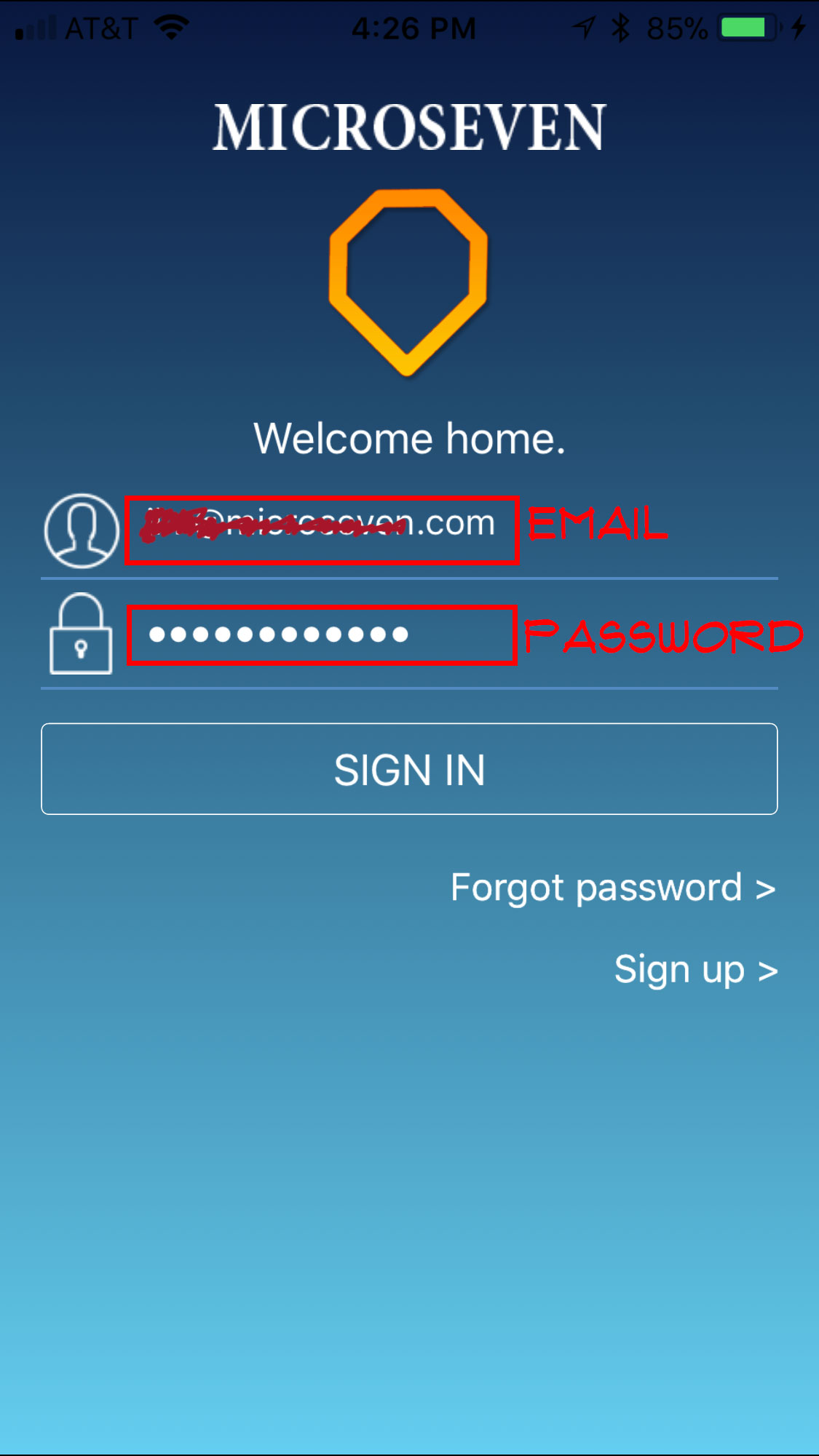
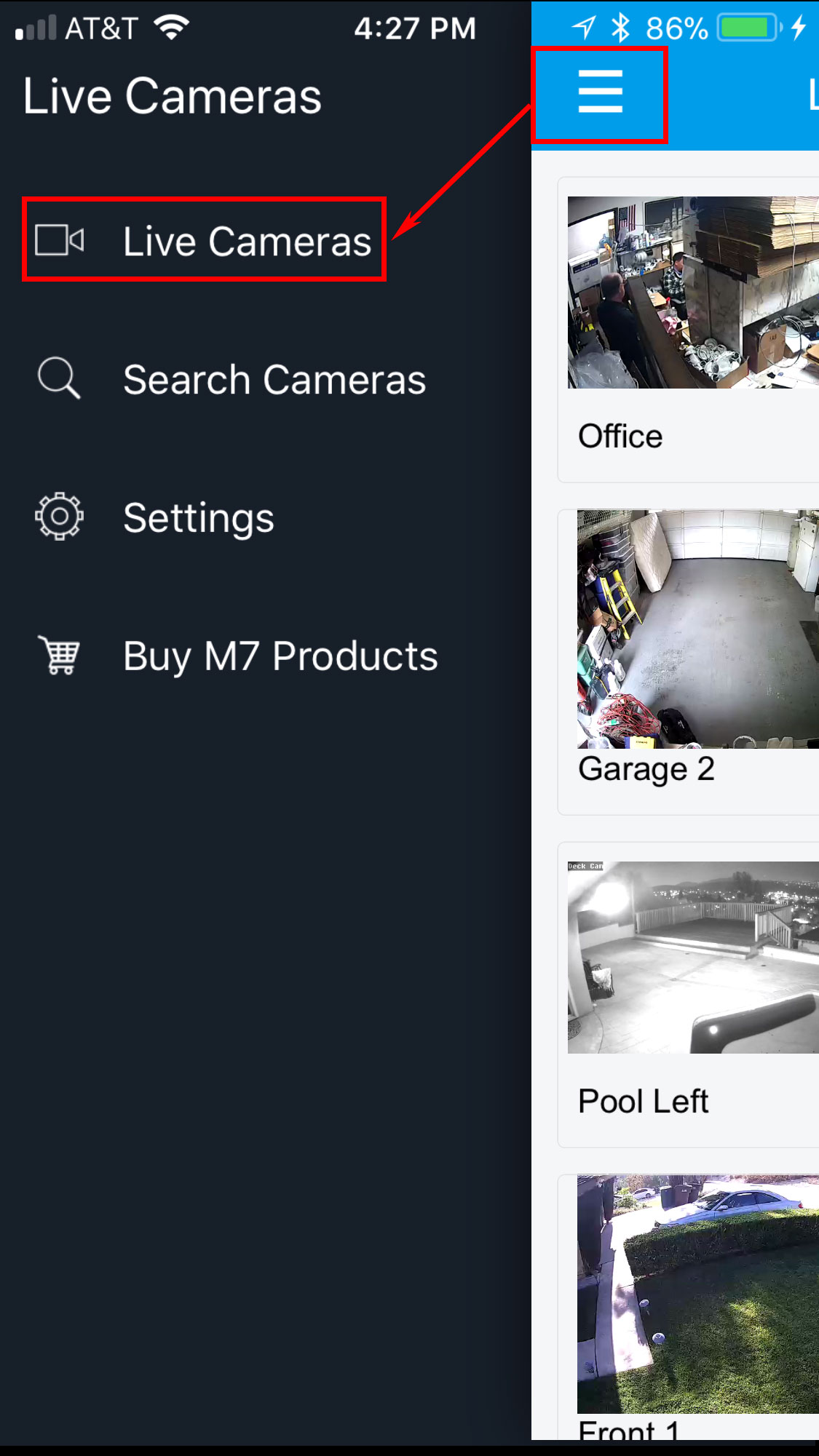
Step 2: After login, tap on menu and select “Live Cameras”
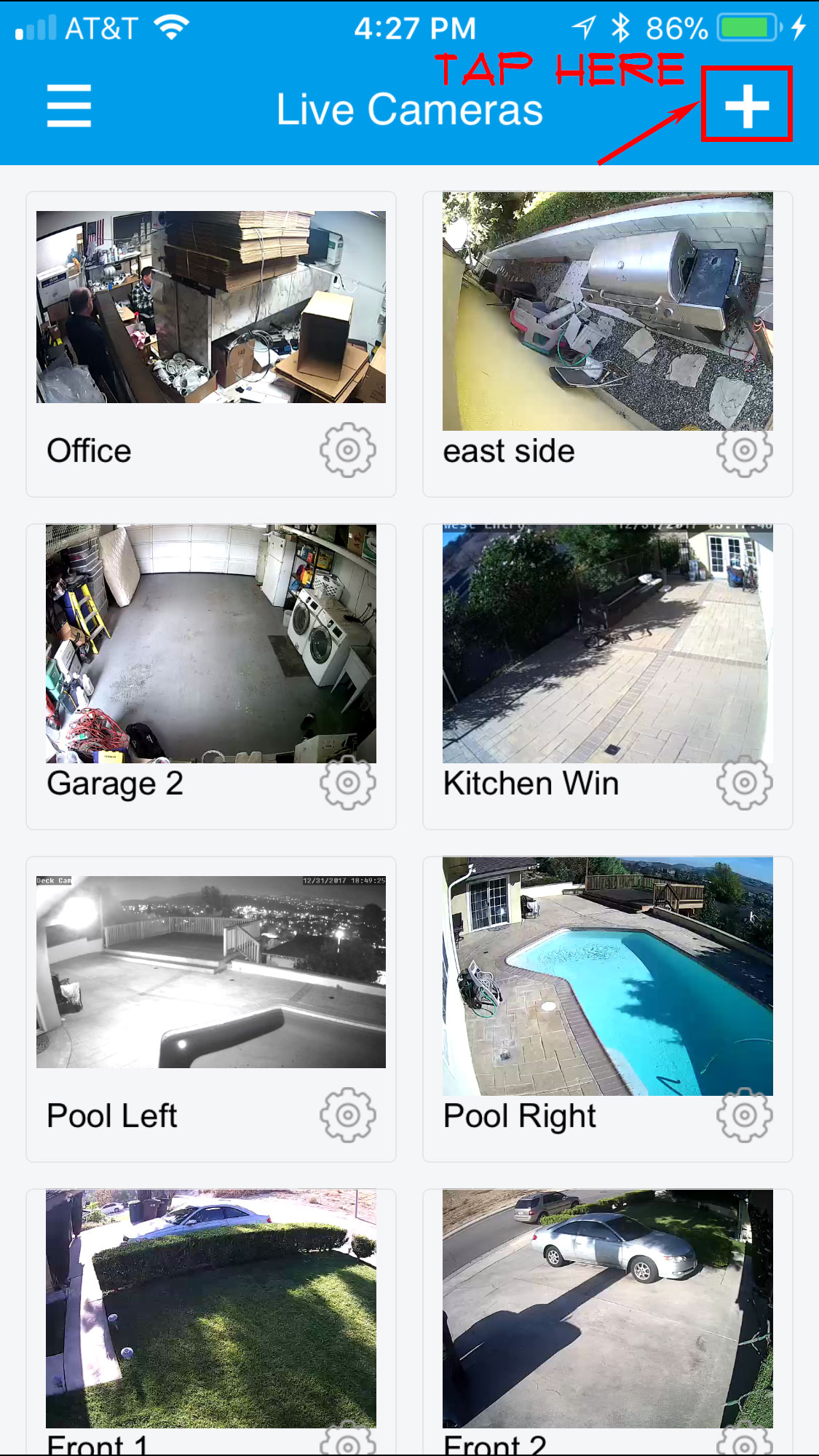
Step 3: Tap on “+” to add a camera
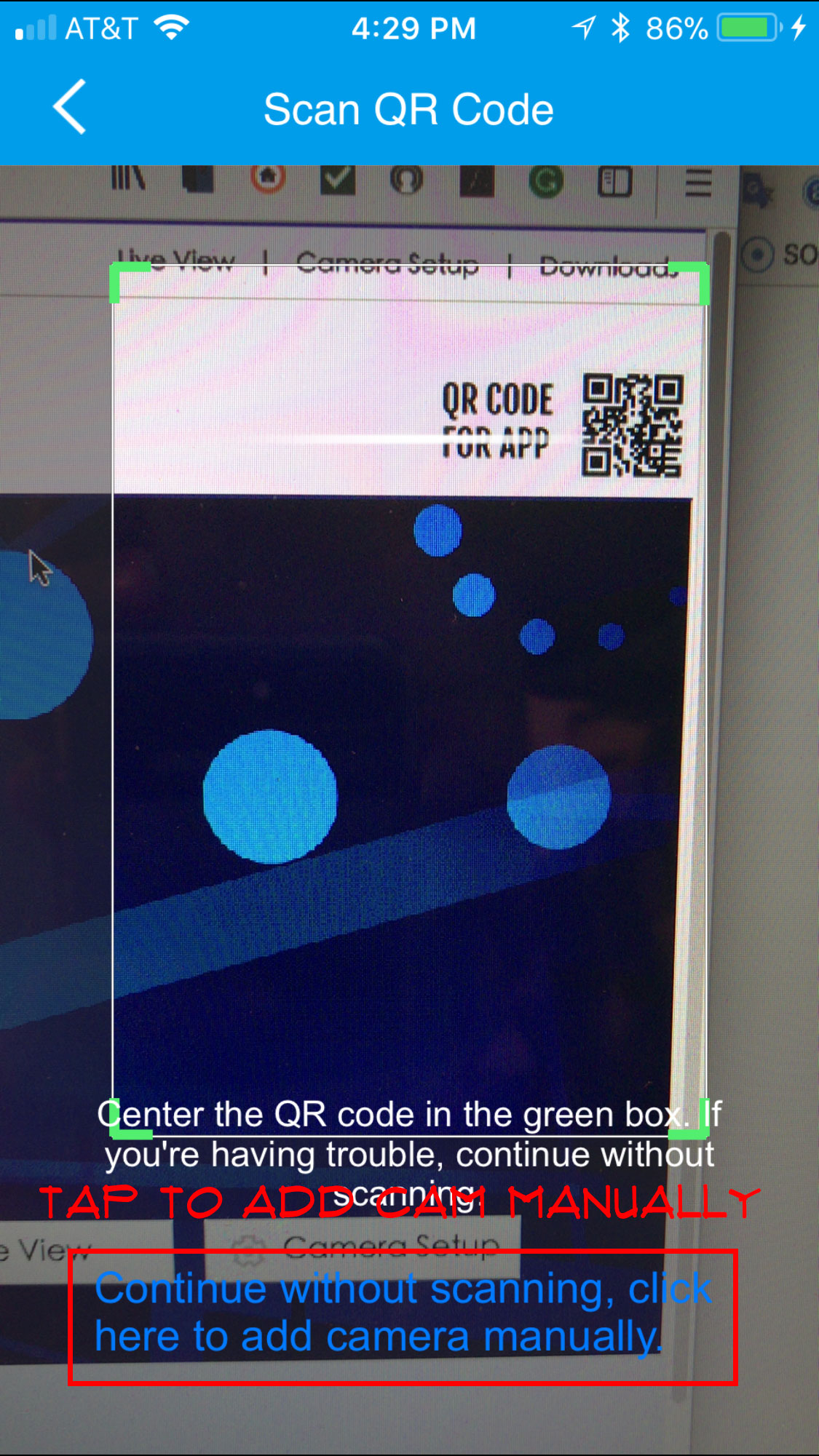
Step 4: There is a scan QR code scanner, QR code on the box, or it is found from a browser when you access the camera via your PC, show the QR on a PC screen. Scan it.
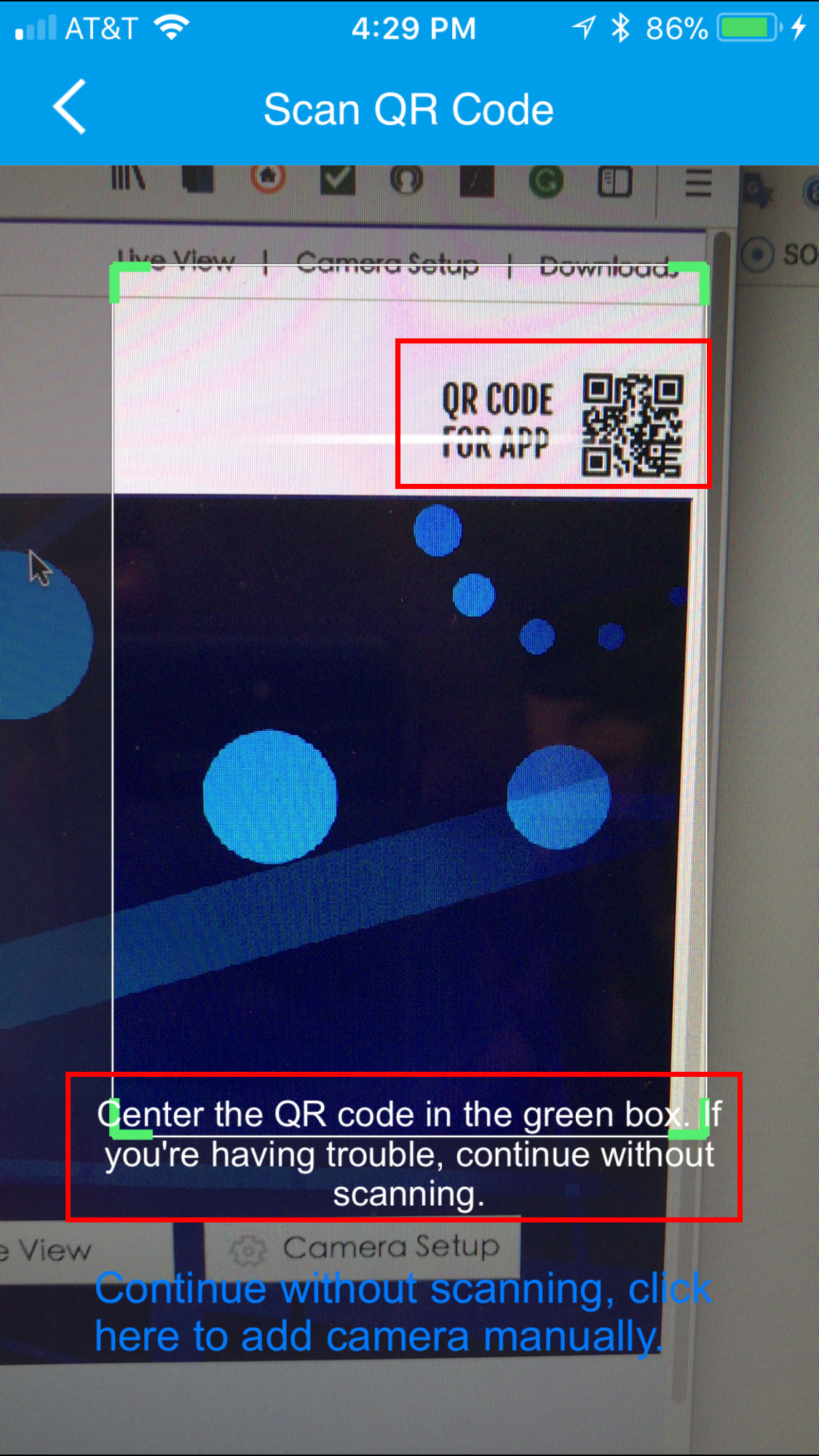
If you do not have a QR code label to scan, you can manually enter CamID and PIN in the app by a tap on the link below “Continue without scan …”
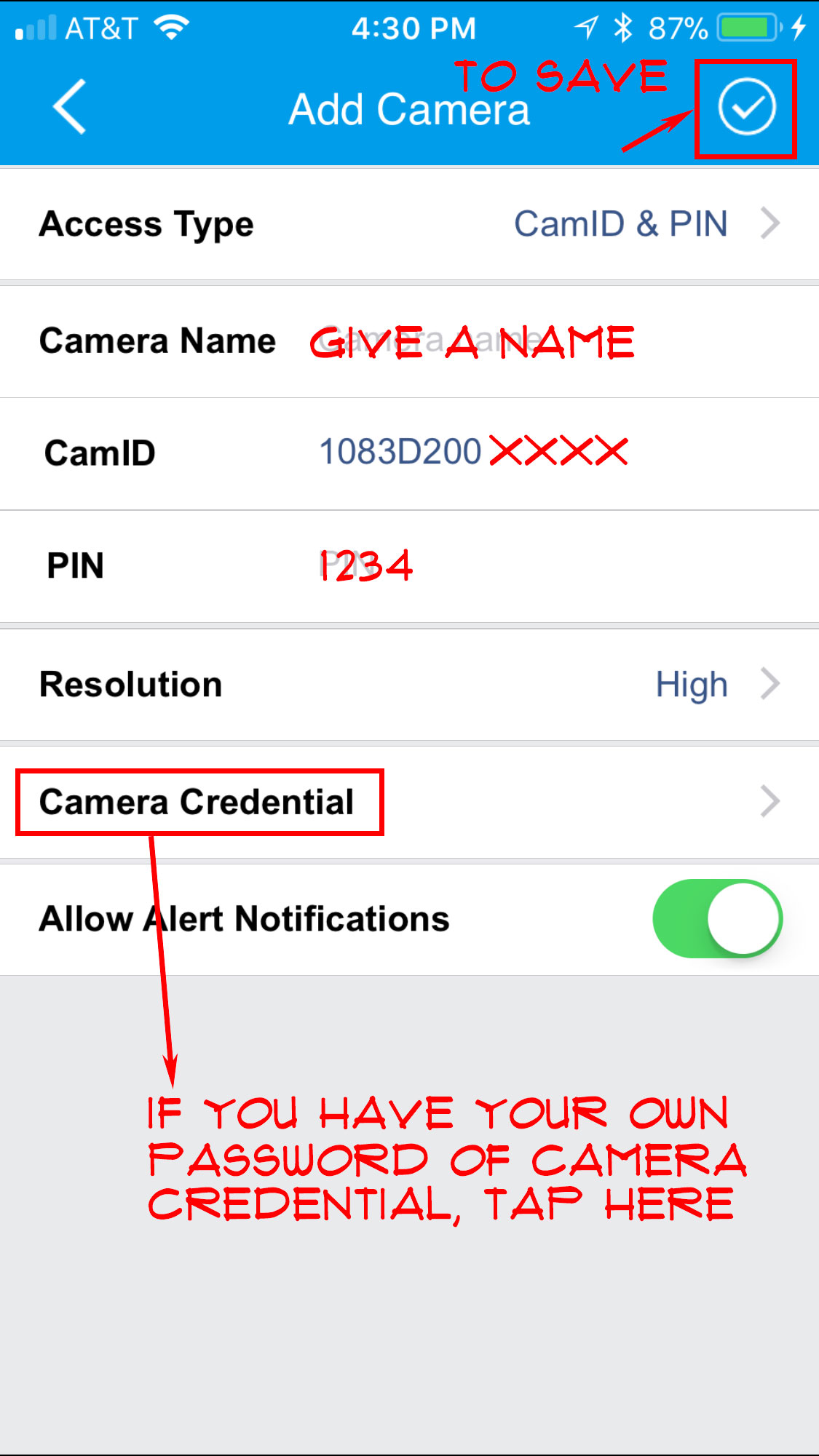
Step 5: Add CamID and PIN in the two fields. If you have a new camera credential then tap on “Camera Credential”. Otherwise, click on “Checked mark on the right top corner on the screen”
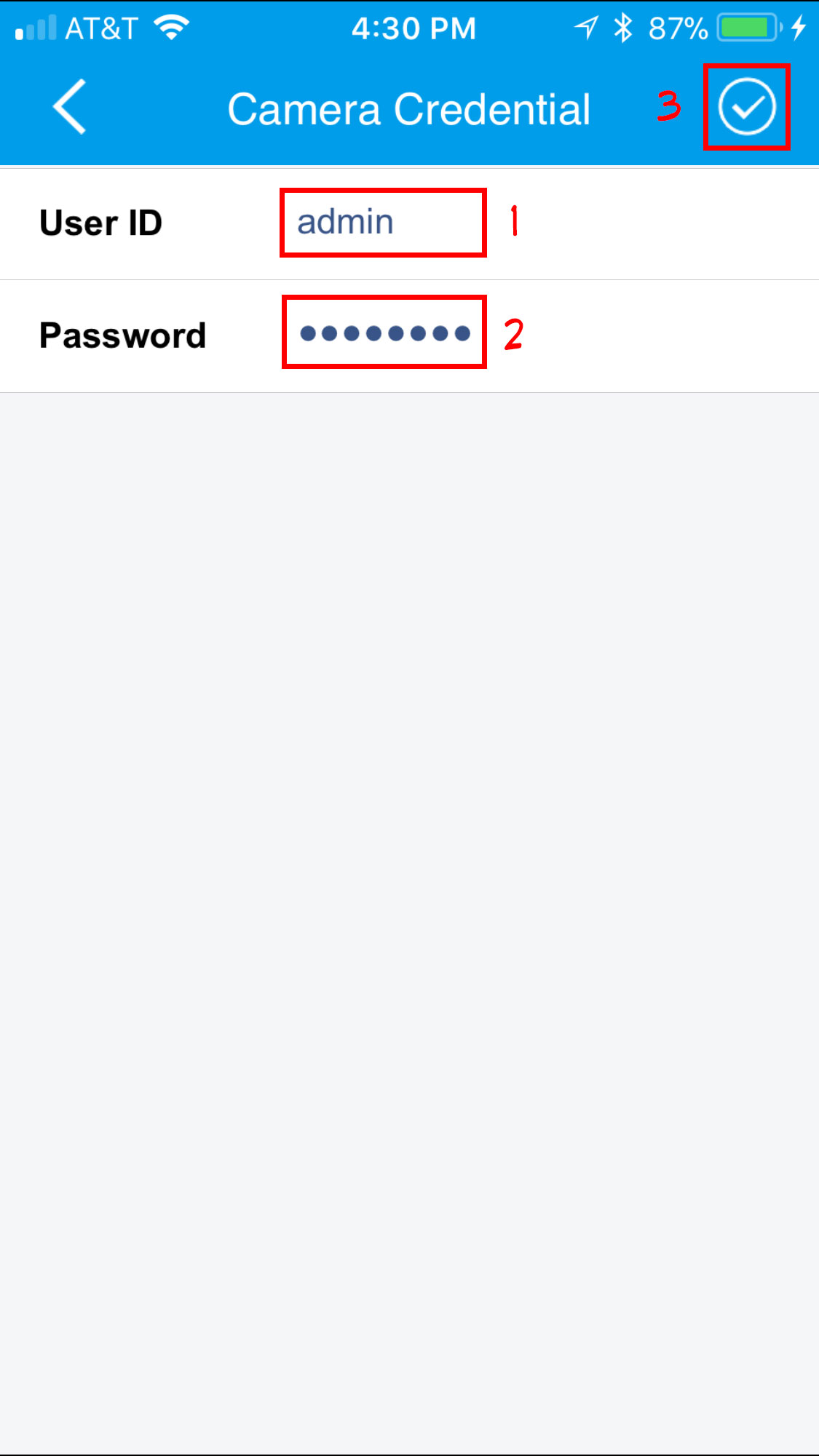
Step 6: Enter your new credential, default value it is “admin” as user ID, and “password” as Password. Then click “checked mark” to save.
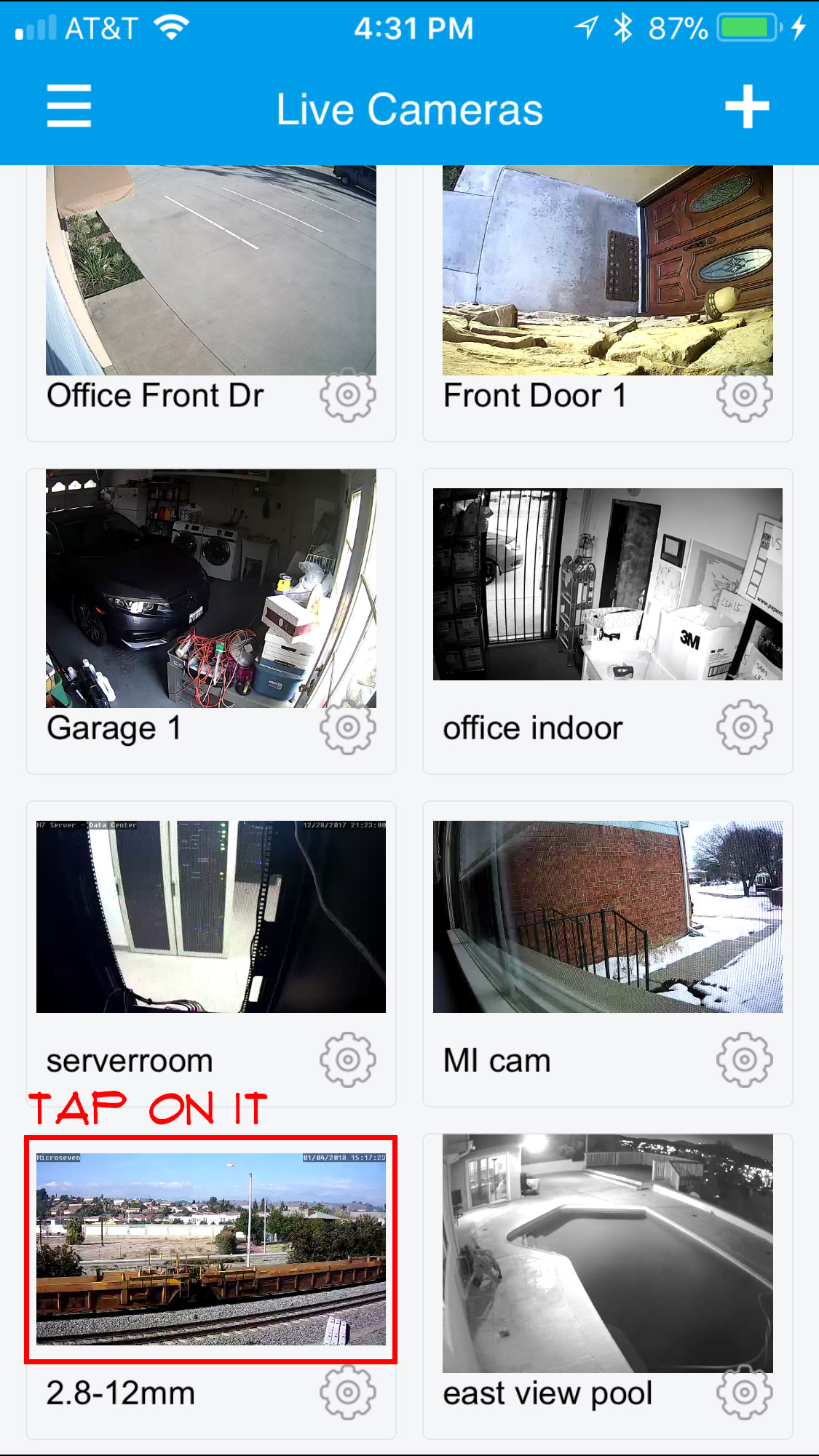
Step 7: Now a camera is added. For Example, the “Valley Blvd” camera. Tap on Valley Blvd image on the screen.
Step 8: Playing live video.
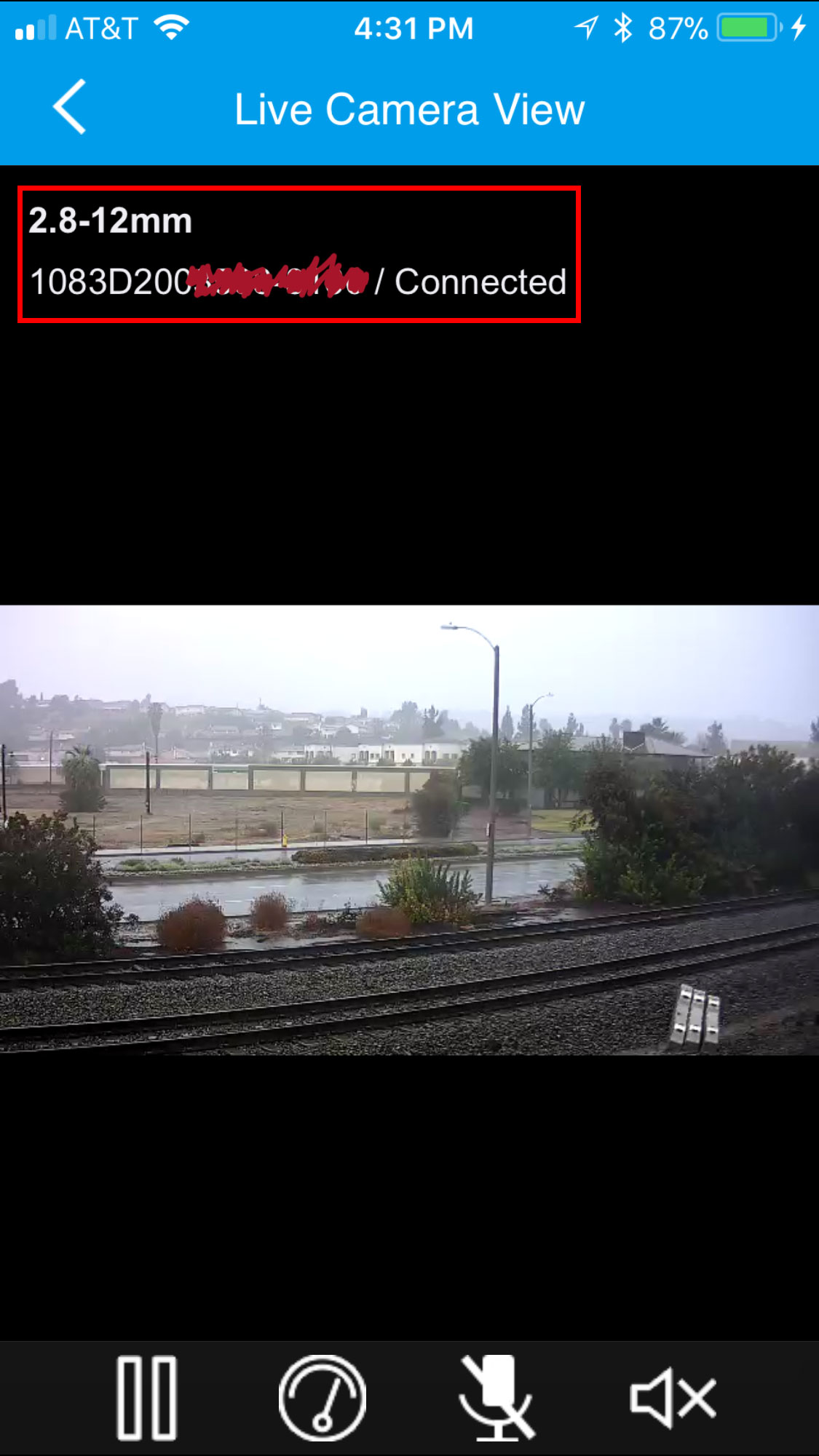
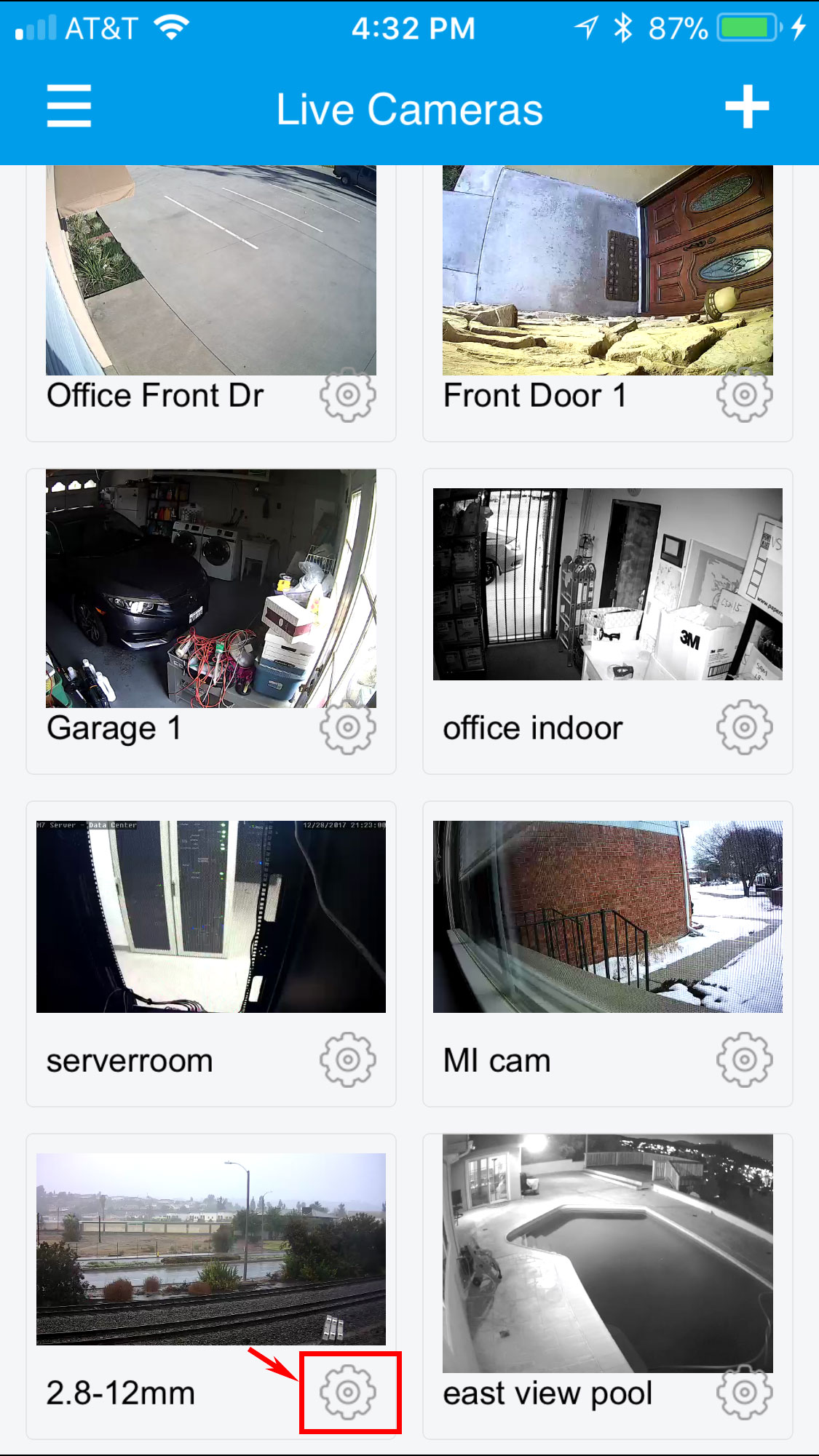
Step 9: To open camera properties setting camera and retrieving playback, tap on the gear icon below snapshot.
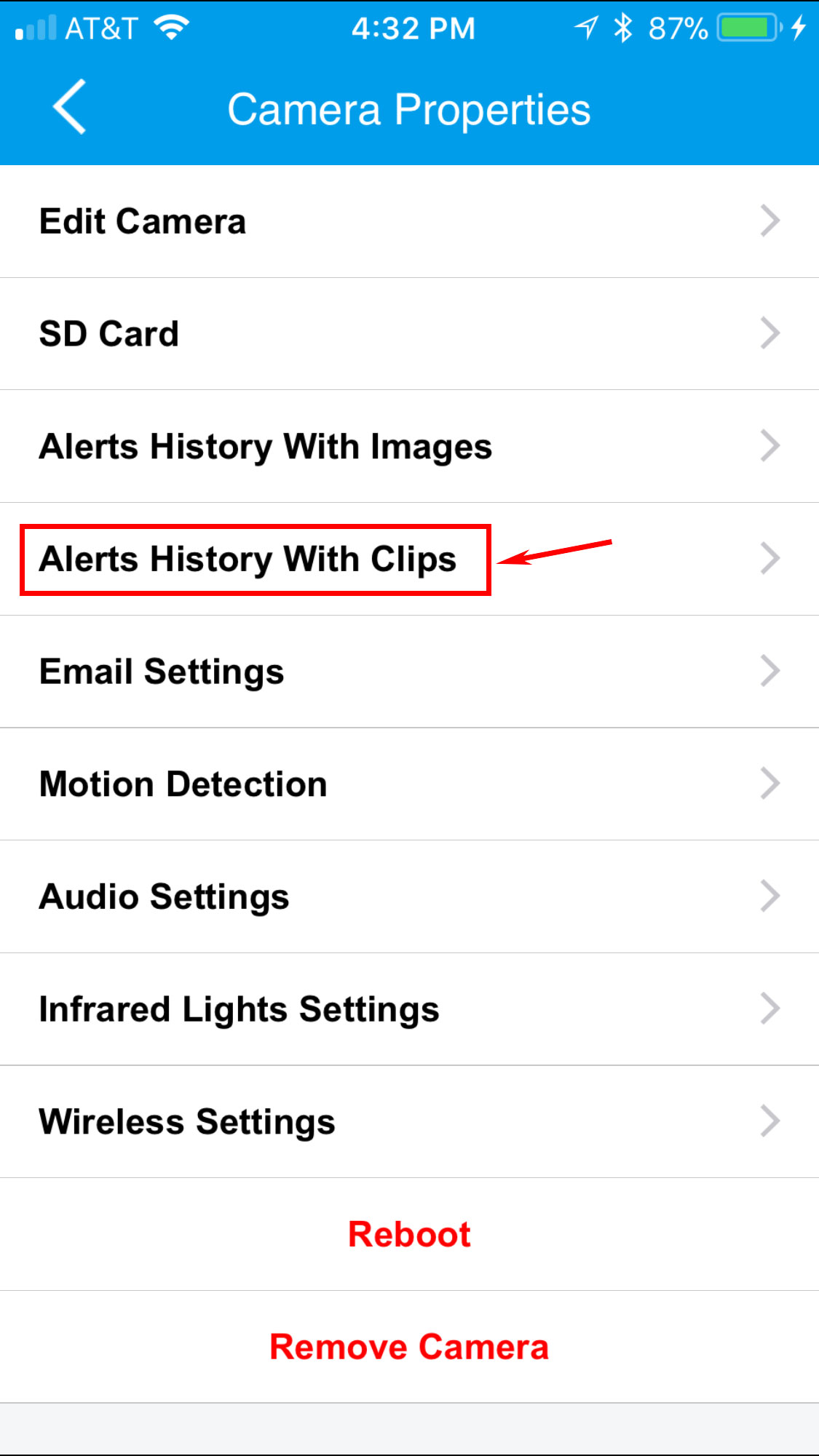
Step 10: Here is the camera properties page, tap on “Alert History With Clips” to retrieve and play the
playback clip on the cloud recorder via motion event.
Step 11: You can search a timeline with playback clip and tap on them and play.
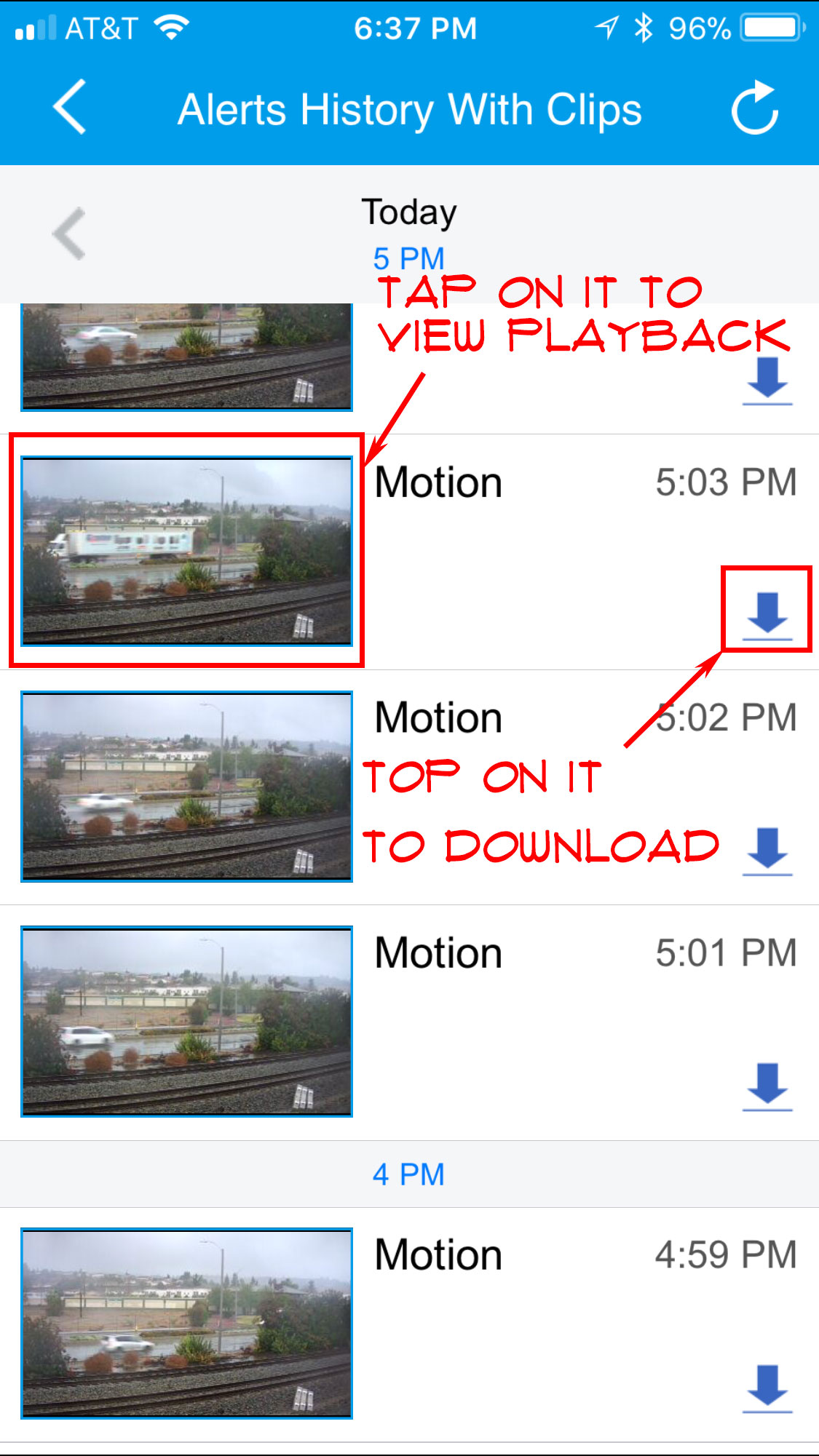
Step 12: Select a playback to play
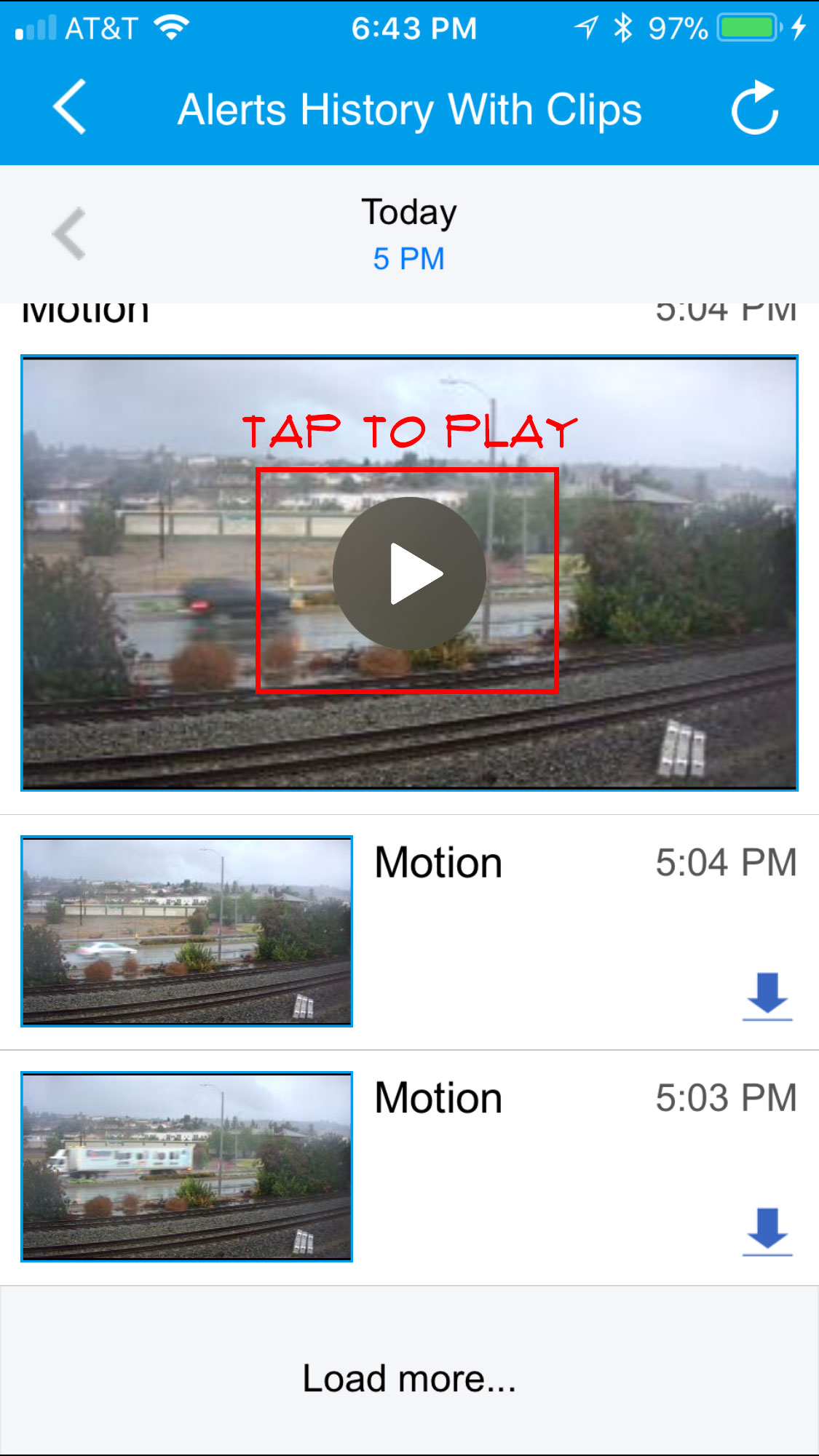
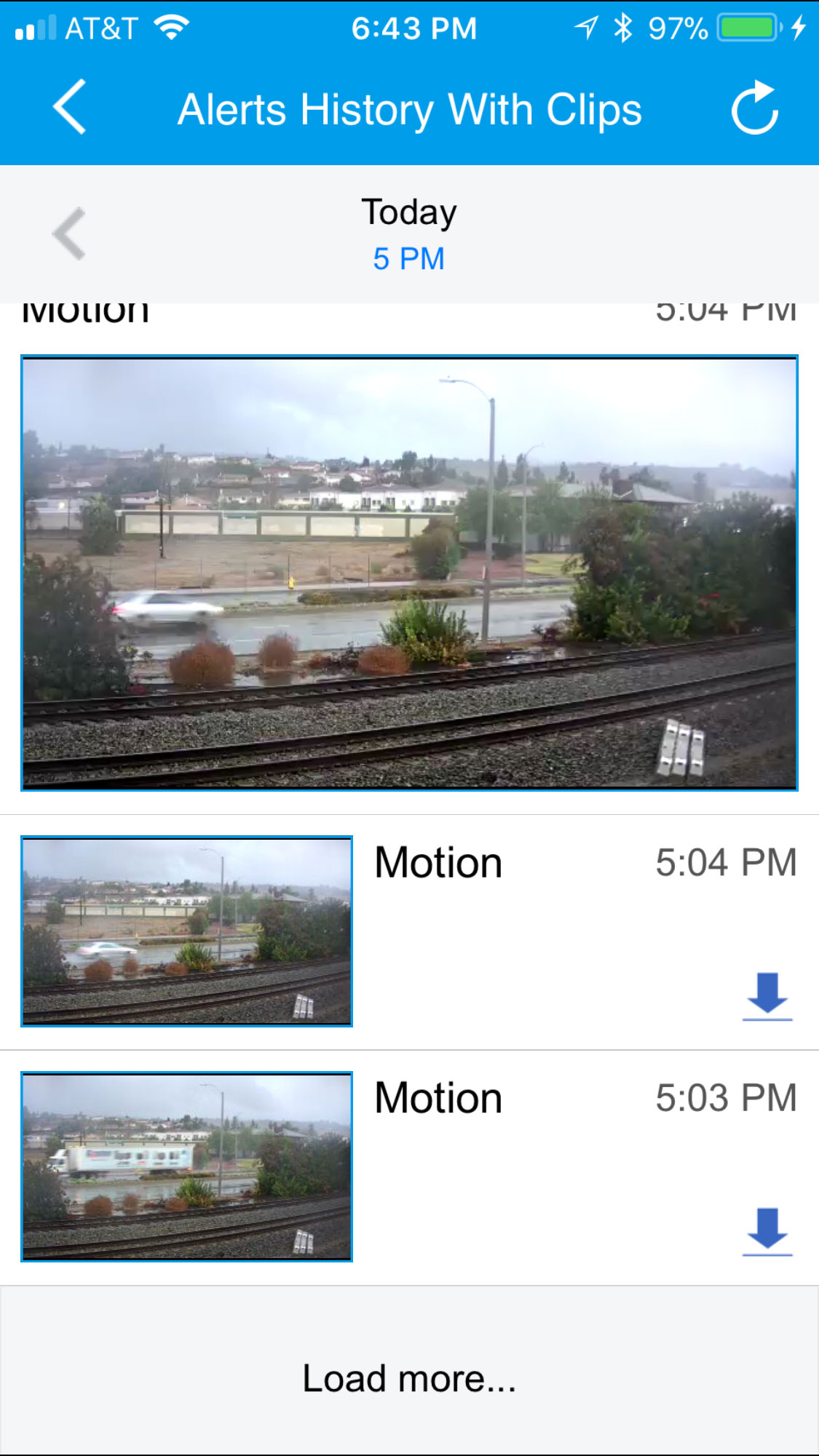
Step 13: Playing …
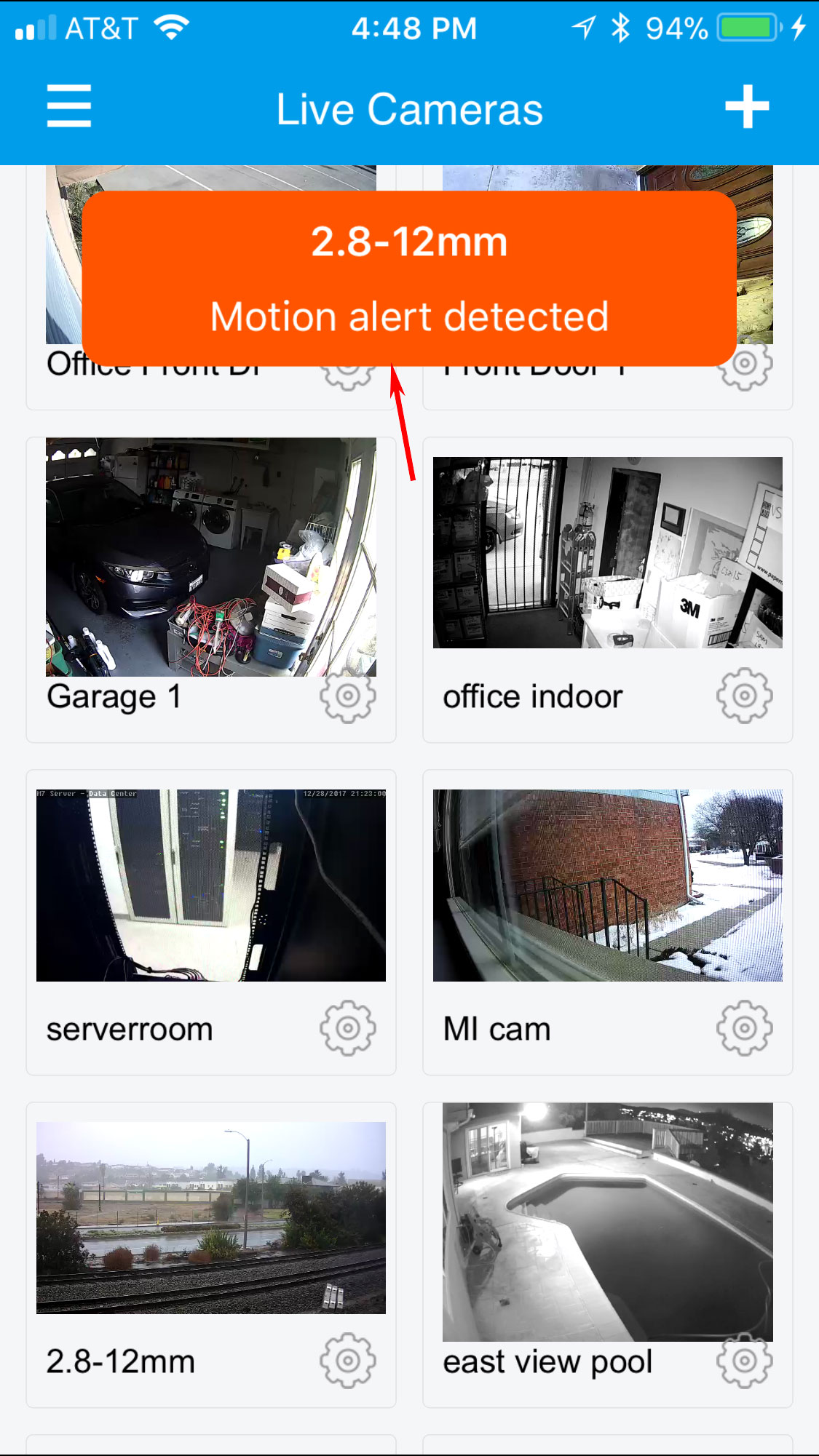
Step 14: While a motion event is triggered, notifications will send a message on the screen.
Step 15: Retrieving and playing playback.
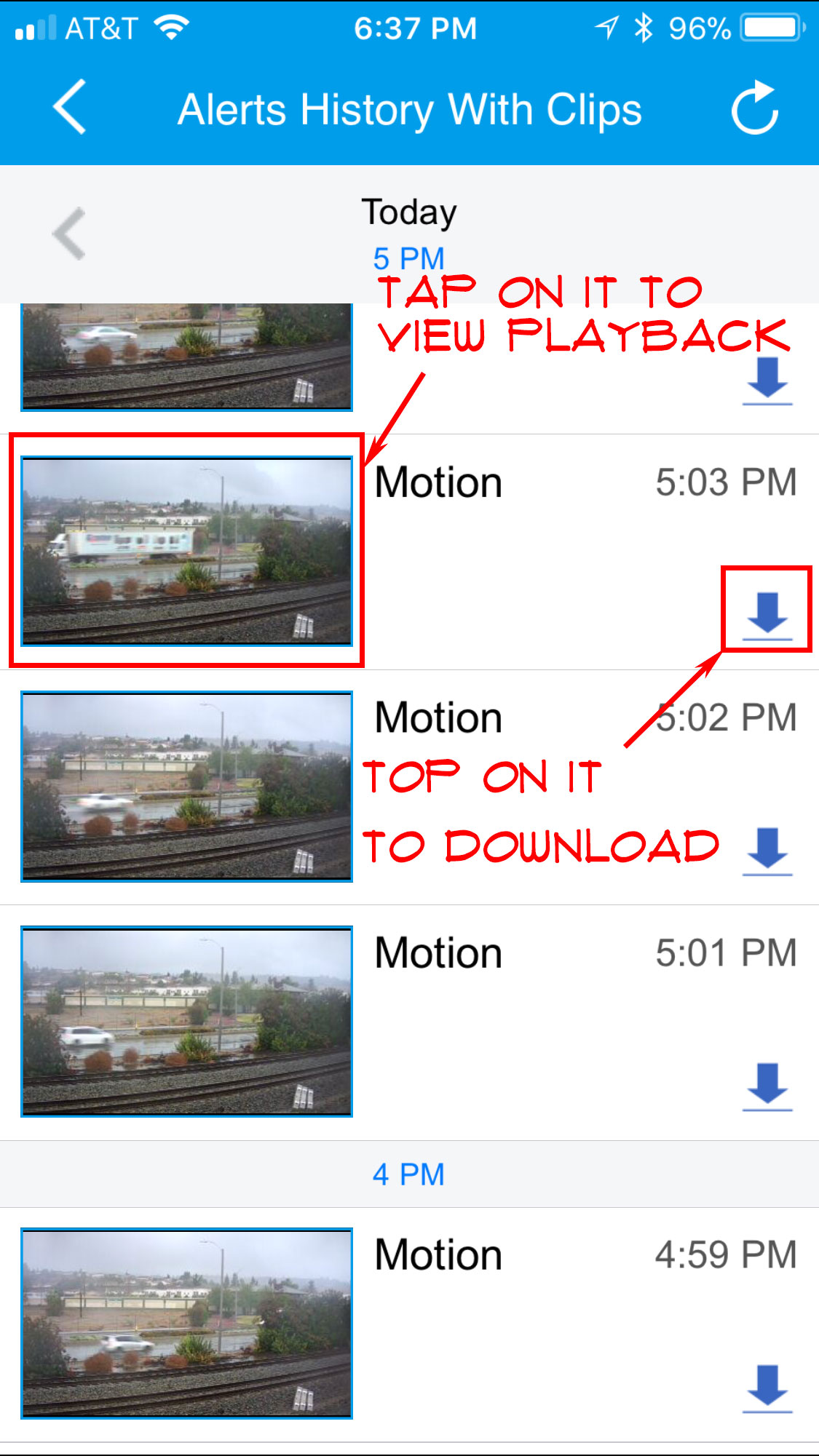
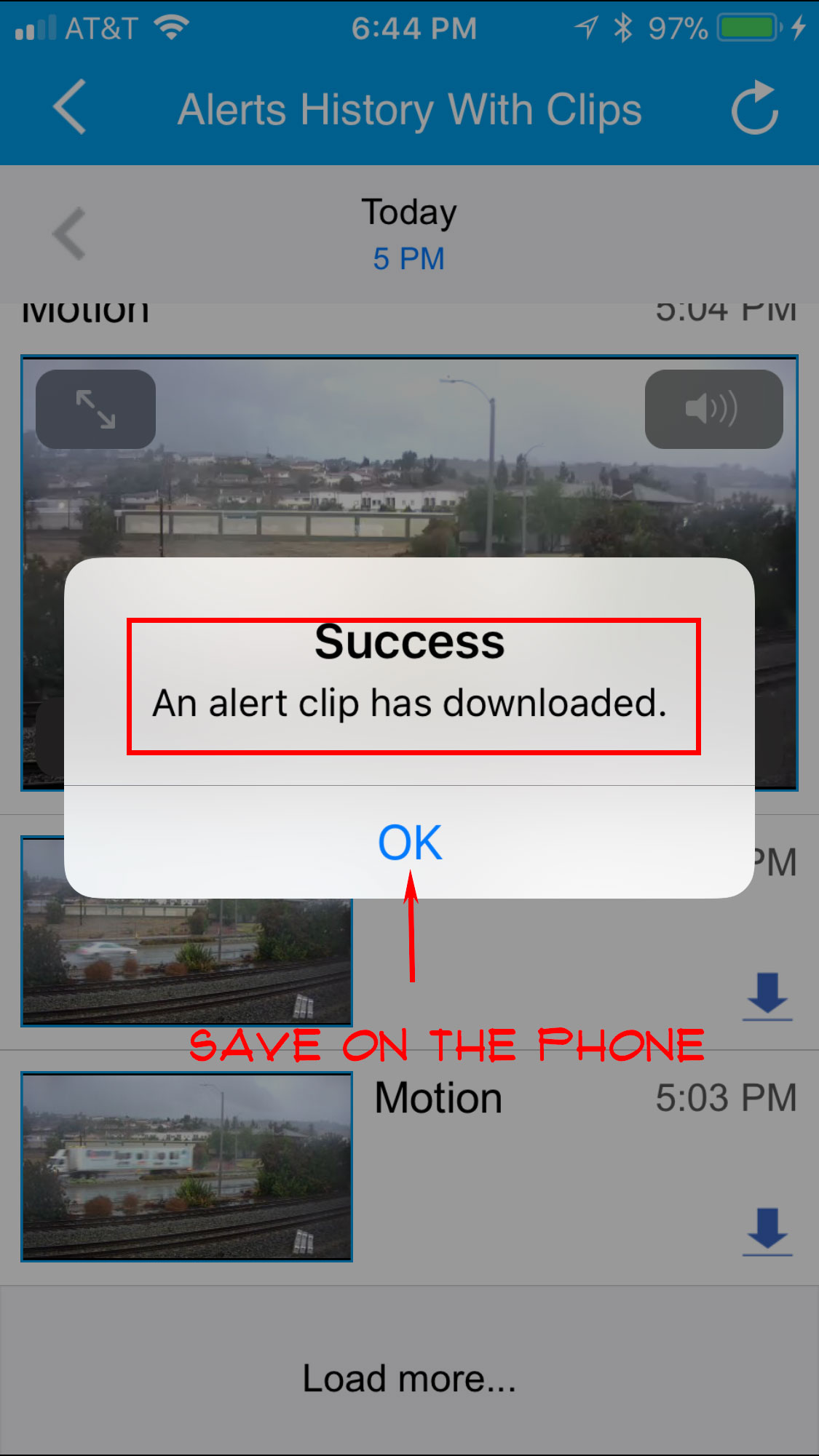
The saved files will be found on the device.

10 thoughts on “How To Add Camera To App And Retrieve Playback From Cloud Video Recorder”

  1. I have downloaded the app and set up everything, but nothing seems to record any actual video. Only snapshot images. How do I find the video? I have created the account and should have recording for at least 24 hours before it gets wiped. So far nothing.

    • You need to go to microseven.com in My Cameras to add a camera to cloud, the subscribe it in free 24 hours history. In My Cameras page, there will be a new interface coming up on Monday. It is easy to add it. You will see the video after you complete the steps.
      When you add camera info to cloud, all the fields are case sensitive.

      The next step, its motion trigger function must be set to ON in camera DETECTION properties settings.

  2. I have downloaded the app and set up everything, but nothing seems to record any actual video. Only snapshot images. How do I find the video? I have created the account and should have recording for at least 24 hours before it gets wiped. So far nothing.

    • You need to go to microseven.com in My Cameras to add a camera to cloud, the subscribe it in free 24 hours history. In My Cameras page, there will be a new interface coming up on Monday. It is easy to add it. You will see the video after you complete the steps.
      When you add camera info to cloud, all the fields are case sensitive.

      The next step, its motion trigger function must be set to ON in camera DETECTION properties settings.

  3. I have downloaded the app and set up everything, but nothing seems to record any actual video. Only snapshot images. How do I find the video? I have created the account and should have recording for at least 24 hours before it gets wiped. So far nothing.

    • You need to go to microseven.com in My Cameras to add a camera to cloud, the subscribe it in free 24 hours history. In My Cameras page, there will be a new interface coming up on Monday. It is easy to add it. You will see the video after you complete the steps.
      When you add camera info to cloud, all the fields are case sensitive.

      The next step, its motion trigger function must be set to ON in camera DETECTION properties settings.

  4. I have downloaded the app and set up everything, but nothing seems to record any actual video. Only snapshot images. How do I find the video? I have created the account and should have recording for at least 24 hours before it gets wiped. So far nothing.

    • You need to go to microseven.com in My Cameras to add a camera to cloud, the subscribe it in free 24 hours history. In My Cameras page, there will be a new interface coming up on Monday. It is easy to add it. You will see the video after you complete the steps.
      When you add camera info to cloud, all the fields are case sensitive.

      The next step, its motion trigger function must be set to ON in camera DETECTION properties settings.

  5. I have downloaded the app and set up everything, but nothing seems to record any actual video. Only snapshot images. How do I find the video? I have created the account and should have recording for at least 24 hours before it gets wiped. So far nothing.

    • You need to go to microseven.com in My Cameras to add a camera to cloud, the subscribe it in free 24 hours history. In My Cameras page, there will be a new interface coming up on Monday. It is easy to add it. You will see the video after you complete the steps.
      When you add camera info to cloud, all the fields are case sensitive.

      The next step, its motion trigger function must be set to ON in camera DETECTION properties settings.

Leave a Comment