
How To Setup Camera Wifi Via Cam Hotspot Using A PC

How to set up camera Wifi via the camera hotspot using a PC

1.  Power on the camera ONLY without an Ethernet cable connected.

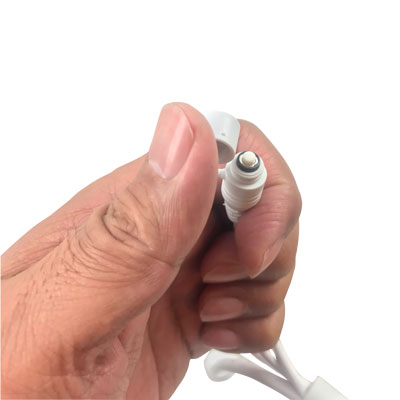
2. Reset the camera for 15 seconds until you hear the bee sound.
3. Use a laptop computer, go to wifi setting on your PC, search a Wifi. Find a wifi name [Microseven-1083D200xxxx] (your cam hotspot), then click on connecting …
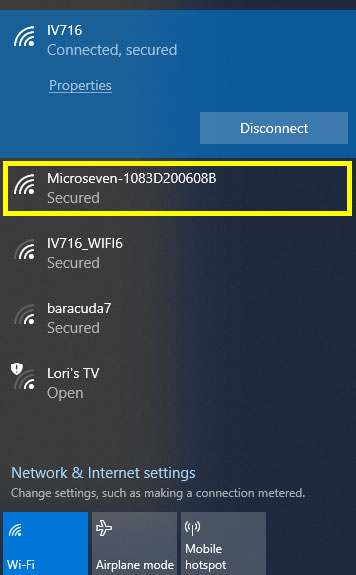
4. Enter the network security key: 12345678

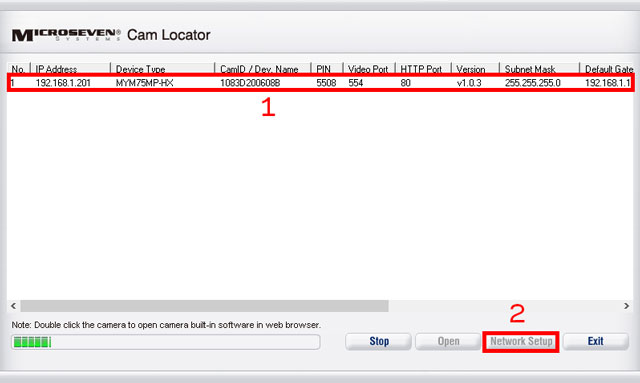
5. After connected, use your Cam Locator searching to find the camera, highlight it in the Cam Locator then click on button ‘Network Setup’ at the same screen on the Cam Locator.
6. Next screen, click on ‘Setup Wifi’ button to open ‘Wireless Settings’ page.

7. Select ‘Station’ in the dropdown list, the click on ‘Search’ for the wifi you want to connect to.
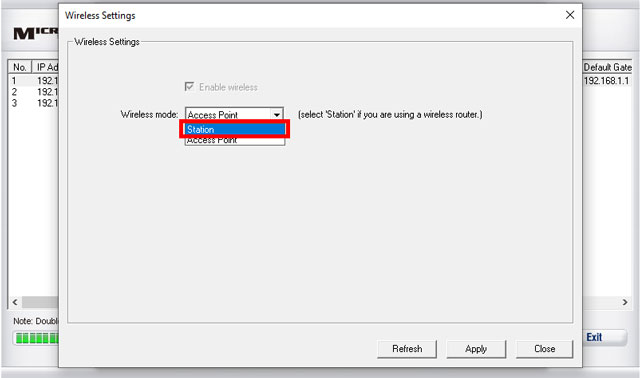
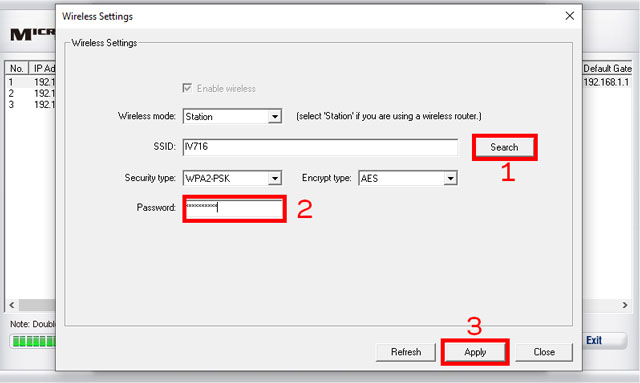
8. After you click ‘Apply’. (You may get a pop up ‘Failed to get settings’. Ignore it [it is a bug, we will fix]). If your camera is near you, you will hear a sound. Otherwise, you waiting for about 20 seconds. The wifi will be connected.


12 thoughts on “How To Setup Camera Wifi Via Cam Hotspot Using A PC”

  1. Does this procedure still work? I followed the process (and even got the “Failed to Get Settings” message). I did not hear a confirmation sound (camera was near me) and the settings were not applied. I’m trying to avoid have to de-install the camera as it gets AC power from the neighbor’s garage and I have to coordinate with him, which is a pain. The camera is getting power, as when I reset it with the small black button, it did make a sound as noted in the instructions. Any help is appreciated! Thanks.

  2. As my camera continues to disconnect after a storm, and it is difficult to service, Is it possible to acquire another cable so I can connect to voltage and to the WiFI? With out removing my primary power cord!

  3. As my camera continues to disconnect after a storm, and it is difficult to service, Is it possible to acquire another cable so I can connect to voltage and to the WiFI? With out removing my primary power cord!

  4. As my camera continues to disconnect after a storm, and it is difficult to service, Is it possible to acquire another cable so I can connect to voltage and to the WiFI? With out removing my primary power cord!

  5. As my camera continues to disconnect after a storm, and it is difficult to service, Is it possible to acquire another cable so I can connect to voltage and to the WiFI? With out removing my primary power cord!

  6. As my camera continues to disconnect after a storm, and it is difficult to service, Is it possible to acquire another cable so I can connect to voltage and to the WiFI? With out removing my primary power cord!

Leave a Comment