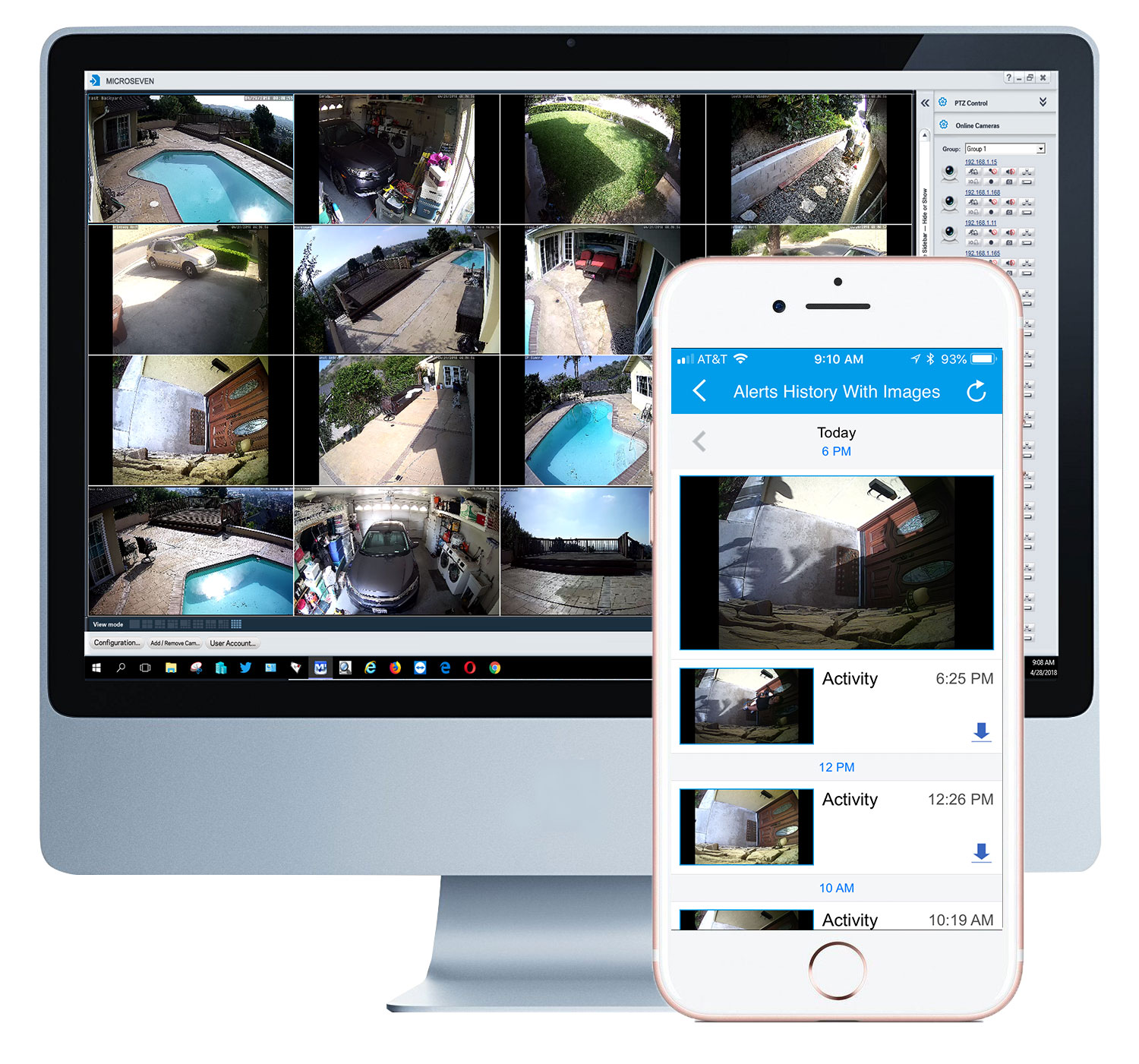
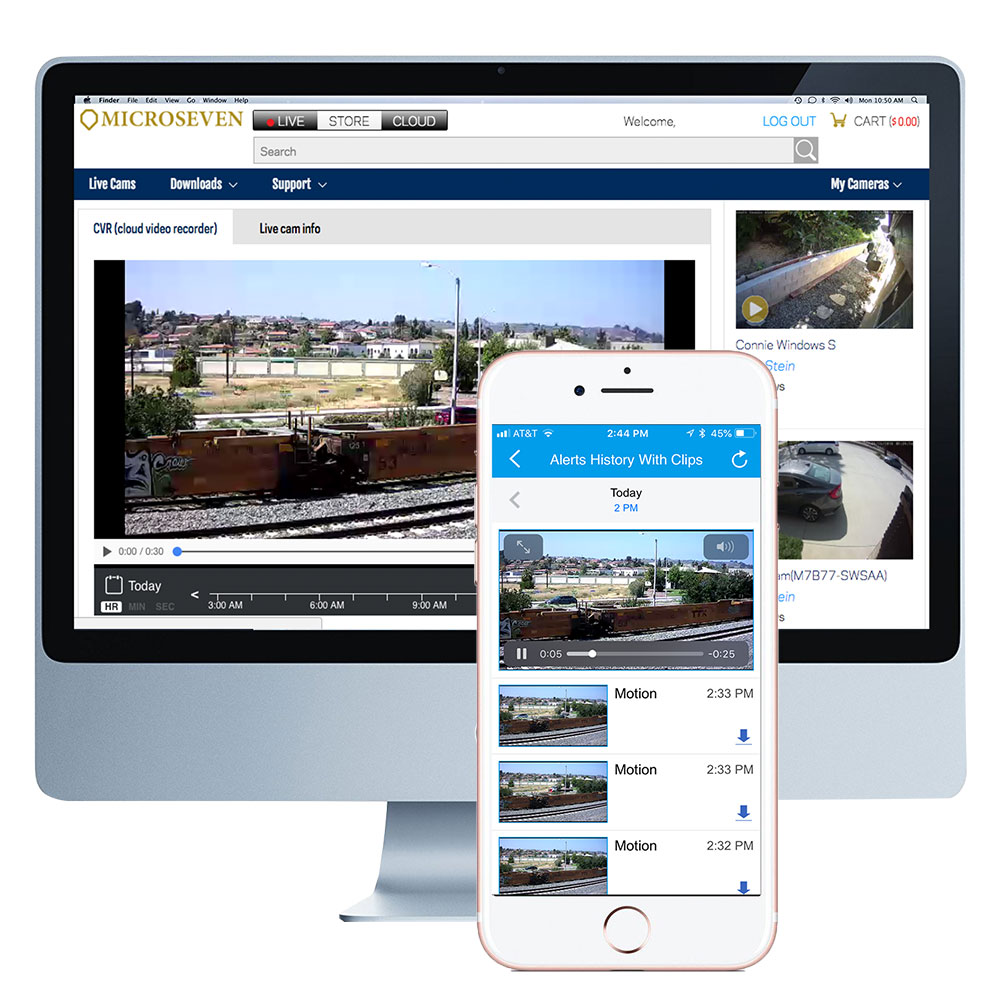
User Guides – How-To

Microseven Wiki

  1. How to set up a camera
  2. How to set up wifi camera
  3. How to make motion-activated alert zones on the camera
  4. How to record video on NVR – PC/server
  5. Microseven app
  6. How to set up PTZ camera (PAN TILT OPTICAL ZOOM)
  7. How to set up CLOUD -RECORDING
  8. How to set up Alexa (WORKS WITH AMAZON ALEXA)
  9. How to set up a camera as a WEBCAM
  10. How to post live streaming to YouTube
  11. How to upgrade the firmware
  12. How to add cameras in CMS software
  13. How to download playback clips from microSD card

We provide excellent Tech Support 24/7. You can create a ticket at microseven.com. We resolve your problem within 48 hours and sooner.

To better assist you, you need to send us your CamID, purchasing order number and your product problem and a question on the ticket.

Microseven Security Camera

 Download user manual

Microseven pan-tilt-zoom optical 20x zoom camera
5MP PTZ 20X zoom command sheet download
5MP 20X Zoom PTZ Security Camera

How to set up the camera?
Connect a power supply 12V DC to the camera.
Connect an Ethernet cable from the router to a camera.

1) Download the Cam Locator. Install it on the computer.

2) Find a camera in Cam Locator
Highlight the camera where you find it, click on ‘Open.’

3) open Open a camera system in a browser.
The login page pops up in the browser, it asks for User name and its password:
Default ‘User name’: admin
Default ‘Password’: password

4) WiFi settings Set up wireless if you have a wireless (WiFi) camera.

After passing the login screen, click on the ‘Camera Setup’ button on the homepage, then select the menu ‘CAMERA,’ click on Wireless Settings from the left side menu.

Select ‘Enable’ wireless, and click on ‘Search’ for WiFi and set it up. (use WPA2/AES for most popular encryption access). ‘Test’ it. Click ‘APPLY’ when it passes the test.

Unplug the Ethernet cable from the camera, and wait for about 20 seconds. Go to Cam Locator window to find the camera again in its WiFi mode. Then open it in the browser. Click on ‘LIVE VIEW’ to test live video feed.

Using iPhone and Android phones to set up the camera WiFi.

5) add a camera to Microseven CMS Add a camera to M7CMS software for multiple cameras in one screen view.

6) add a camera on phone and pad Add a camera to the mobile phone and pad via the camera’s CamID and PIN.

7) add a camera to Microseven cloud Add a camera to Microseven cloud.

8) Alexa Add a camera to Alexa.

https://blog.microseven.com/2018/04/24/how-to-link-microseven-app-to-alexa-app/

Option:
9) Set it as a website Webcam for a live streaming video feed.

How to set up camera WiFi to connect to the router?
Most of the case, the security type is ‘WPA2-PSK,’ and the encryption type is ‘AES.’ Check the info on the router if you need it.

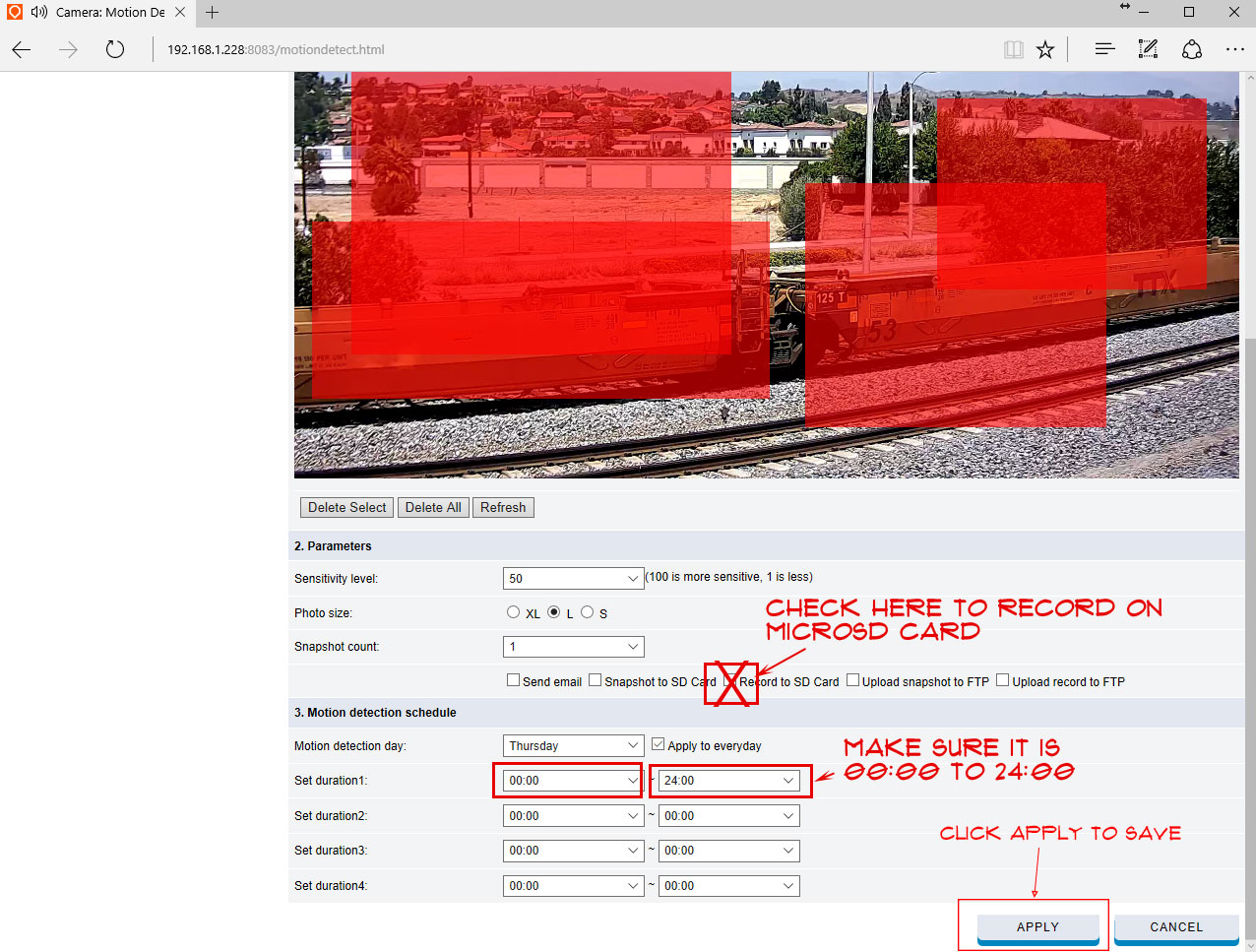
How To Make Alert Zone(s) [smart zone] To Trigger The Motion Event Alert To Record To An SD Card

Make sure the alert zones are selected.
One a motion alert is triggering, it will start recording. It is applying for recording on
a) micro SD card micro SD card;
b) cloud;
c) computers via software;
d) network DVR.

Set up an Email server to send an alert event email.
The camera accepts all the SMTP servers to issue alert emails. We use the Gmail SMTP server.
How to set up the Gmail SMTP server in the camera?

You will use Gmail as a sending email SMTP server; it will send the alert email from the camera to your [Gmail/Yahoo/Hotmail/your_own_email] email.
The previous SMTP server was mail.mym7.com; you will use GMAIL stmp.gmail.com to replace the mail.mym7.com. Gmail SMTP server is SSL/TLS secure server required in the latest firmware to protect your privacy.

1) How to set up a network video recorder for Microseven cameras?
2) How to set up a network video recorder for ONVIF cameras?
3)  How to activate free one-day cloud storage?
4)  How to set up a recording on a new version 4K ONVIF NVR?
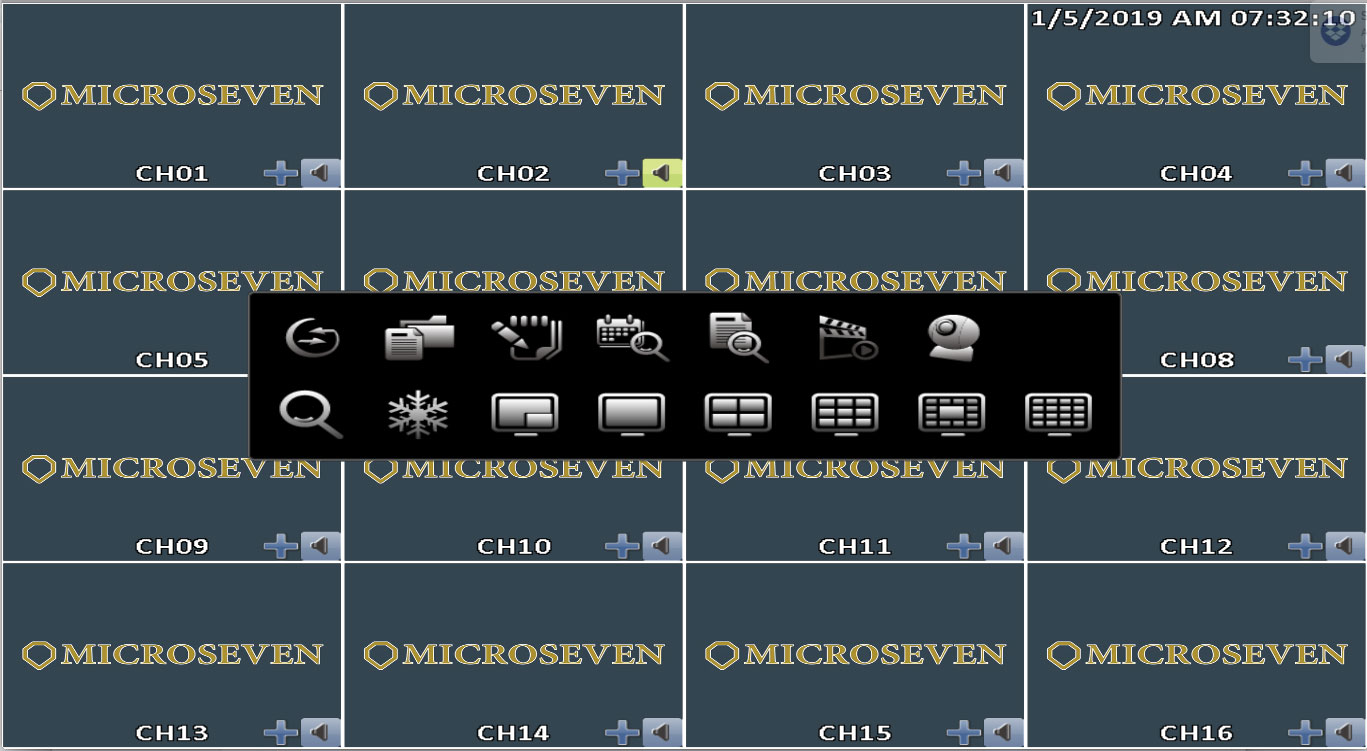
Hardware set up

Software set up

5) How to install a hard disk to network video recorder?
You must get a WD PURPLE SURVEILLANCE HARD DRIVE installed. The HDD indicator lights up while the recording takes place.

6) Make a video record on PC hard disk.

1) Windows app
How to add a camera to a Windows app?

Windows App User Guide

2) Mac app

3) Mobile app
iOS
Android
How to add a camera to the App?

4) Works with Amazon Alexa app

How to set up Microseven link to Alexa
https://blog.microseven.com/2018/04/24/how-to-link-microseven-app-to-alexa-app/

5) Record video on the server

How to set up a PTZ in the App for PTZ cameras?

How to add a camera to the Microseven cloud?

All Microseven cameras are working with Amazon Alexa.

Set up a webcam for live video streaming over microseven.com.

Setup a webcam (webcam video format HTML5)

533 thoughts on “User Guides – How-To”

  1. In trying to figure out why a browser was so slow to load video on a private network, I started looking at packets on a mirrored switch port when both the camera and browser had access to the Internet. What I found is that any time the camera, an M7B77-WPS, under power, it is sending out a packet every 10 seconds to IP address 173.254.193.108 (mail.mircoseven.com) on port 7007. More importantly I found that each packet contained in plain text my camera’s user name, password, ID number, PIN number and other data.

    This to me is a real security issue and I would like to know how to stop it. To be honest, I see no reason for that information to be transmitted at all, let alone 6 times a minute in the clear to a mail server. That information should be provided by the user only when he or she makes a conscious decision that there is a need to provide that information and even then, it should be encrypted in transit.

  2. Is it possible to configure an M7B77-WPS camera to directly save streaming video to an SMB share on a Linux server? After installing the recording software I found it was not a tool to configure the camera on how to save the video stream as I thought, but an actual program that has to be run 24/7 for continuous recording. This adds another possible point of failure, particularly if it runs on a users PC. If direct save is not possible, is there recording management software available that can be run directly on the Linux server and administered/configured from the command line? Obviously the last alternative is a dedicated PC to run the recording software only and kept in the server room but that is a real waste for a lot of reasons.

  3. When viewing the default video stream from a M7B77-WPS camera in a browser, the actual display of the video stream is very small (56 square inches on 226 square inch screen) with a lot of unneeded white space around it. I have looked under “Video Setup” and I do not see away of increasing the image size of the stream. Is there a way?

    The goal would be to be able to create a bookmark on the bookmark menu bar of the browser so a user could click on it and have the video fill the screen with a minimum of white space and clutter.

  4. My WiFi password has one of these characters in it. Why am I not allowed to use it when every other wireless device in my home allows for this? I’m not very happy because now I have to reset my WiFi password and then update it on every wireless device in my home (over 20).

  5. I cannot view the live feed anymore from the web page. It just stopped, spinning forever. I do have access to the camera, I can change settings, and sometimes get to the SD card, but it takes a loooooong time if at all. The iOS App started to “failed to access camera” or words like that, becoming useless.
    When I do get to the SD card, I can see that the camera is working fine, taking pics & video when birds fly by. Live view is dead…

  6. How do I download the video files from the camera’s SD card remotely? Can I do it from the IOS App? Or IOS Safari? I can view them in both, but I don’t see an option to save images or video??

    • There are no function in the current app to download video or image to iPhone. If you want to download video and image, you use Mac OS X or Windows computer to download them to computer on the desktop via Microseven app or Safari.

  7. I am having the same issue here; it looks like they have split the control and media features off onto different ports for some unknown reason. Do you have a link to the older firmware? These cameras are basically useless without the ability to access externally

  8. Starting with 1.1.7 Firmware, I am unable to view MYM7 (M7B15 & M7D12) cameras over the internet! While the Microseven App works, my third party viewer “tiny cam pro” quit working. When I roll back to 1.1.6 firmware I am able to view multiple cameras at once remotely. Did the encoding scheme or protocol change? Or is admin account blocked remotely? 1.1.6 works fine, 1.1.7+ does not.

    • I am having the same issue here; it looks like they have split the control and media features off onto different ports for some unknown reason. Do you have a link to the older firmware? These cameras are basically useless without the ability to access externally

  9. Hello. I just received an M7-RC650WS which I ordered. While adjusting settings I accidentally selected the wireless option without completing all off my router settings. Now the Camera will not show up in cam locator anymore. Is there a way to factory reset the camera with a switch inside of it or something? I need the I.P. address to be back to 192.168.1.201 [wired] again. How can I restore the default settings? Thank you for the help and for the great products.

  10. Camera locator found camera, and set the ip to 192.168.2.102, can ping it but I get a “remote dvs has a connected error” and camera locator just shows the ip address now.

    Any Ideas?

  11. Hi there,
    We are currently using multiples M7 cameras in our business for about a year now, and each week we have to do a reset (unplug the power and then replug after 10 sec), because we are losing the image of one or all camreas on the M7CMS Software.
    The cameras are very far away (less than 300 feet of cable between the camera and the router), wich resetting them is penible. 
    They are working on our wired ethernet network, with a fixed IP adress.
    What is the possible cause of this, and how can we avoid these issues?

  12. Jim,
    Tried to install M7Live version 2.09 and received the following error:
    Starting Microseven M7Live flash media server..
    System erro 5 has occurred.

    Access is denied.

    Press any key to continue…

  13. Jim, I now have the camera setup and on the net. I want to change the camera username andpassword from “admin & password”. How do I do it?? Please email the exact step by step to do this.
    Thanks


    • Step1, open M7CMSStep2, click on video using right button on your mouse, a pop menu up, go to drop down list and select on properties.
      Step3, click on User tab, on the User page, there is admin user, then you can change the password.
      Step4, after you change it, please change M7CMS video password as well, otherwise, the video won’t show up.Steps for change the password in M7CMS,Get you new password ready on hand.Step1, open M7CMS softwareStep2, click on Camera Setup… buttonStep3, select Camera Setting on pop window, then click on OkStep4, high light the camera IP address, double click on itStep5, enter new password in the Password field, then click on Edit buttonIf you want to be back to factory default, open camera locatorStep1, find the cameraStep2, double click on the camera IP, until a pop window upStep3, Click on Reset(Factory) buttonStep4, waiting 45 seconds to reboot.

  14. Hi there,

    Two questions on the RC550WS.

    1. Focus and Iris settings.  These don’t appear to work when trying to adjust from either M7IE or M7 CMS.  Do these functions work with this camera?

    2. FTP still images.  I can’t seem to get the camera to FTP still images to my webserver.  I have entered the information on the FTP Server into the FTP screen and have it set to autocapture FTP/Email.  It doesn’t send the images and I’m not seeing anything (no success or fail messages) in the device Log when I query
    Terry

    • Thanks.

      I was able to figure out the FTP issue.  I stumbled upon the dialog you had at the bottom of your Blog page where you had responded to a comment.  The default setting is for the device to use DynamicDNS so the FTP doesn’t work.  Adding in the actual DNS from my provider did the trick.  Suggest you might want to include FTP settings as one of your Blog entries:

      1. go to motion detection menu to trigger motion on from on/off options. 2. please select FTP and must be the FTP url folder to save the images. 3. check network DNS 1 and 2, you need to provide the real DNS1 and DNS2 number in the field to make it works.

      Terry

  15. how to activate mjpeg a mode? at me is at a choice of mjpeg of a mode the black or white screen. images in mjpeg a mode aren’t present (+wi-fi a mode)

      • sorry. excuse it not so. in video settings the mode D1 720 x 480 is available to the first stream (lan). CIF 360 x 240 and 180 x 120 are available to the second stream (wlan) only, in a dropping-out window of video settings of the second stream it is impossible to choose permission more than CIF 360 x 240. in what the reason?

    • 1. go to motion detection menu to trigger motion on from on/off options.
      2. please select FTP and must be the FTP url folder to save the images.
      3. check network DNS 1 and 2, you need to provide the real DNS1 and DNS2 number in the field to make it works.

  16. Hello. Purchased the camera M7-CX550WS-Ir-N. I can not adjust wi-fi- there is no c connection by Netgear 3700 router. how it is necessary to create wi-fi connection in M7CMS settings?It is necessary to create in 1 group directly 2 connections (lan + wlan)? 1-192.168.1.201 channel1 port 96602-192.168.1.108 channel1 (or2?) port?
    and what settings need to be changed in settings of the router of Netgear 3700?
    Can be at whom there is a screenshot of screens of settings of a router of Netgear 3700 for this purpose that he earned with M7-CX550WS?
    3 day I can not adjust on wi-fi this camera in any way; – (

  17. electrical storm took out my power supply replaced it infrared lights are on but not able to bring up camera.  how do i test if camera is ok or is it just programing. Have tried hooking camera direct to my laptop   response camera taking to long to come on.   CAN YOU HELP?   or is the camera dead?   roger

    • take camera down, and place on your desk. connect it to power supply and ethernet cable which goes to router. use your computer to do search to find the camera. If the camera cannot be found, the camera may be dead.

  18. When I log on to the camera remotely, under ‘DETECTION’ in camera setup the screen where you choose areas to mask is blank black screen. If I double click the black box, it goes to full screen video. When I double click again, it goes back to detection settings with black box.

    • Aaron,
      You need use M7CMS software, click on properties. In the properties page, you can modify and setup detection function. If you use M7IE, it may not work, there is blocked by IE configuration for level of privilege. The best is using M7CMS software.

  19. Hi jim , I talked with you yesterday. I need : fixed, wifi, outdoor, 12mm lens, h264, IR CUT ,… Im thinking to buy RC550WSO . What do you think ? Can I change the lens to 12mm easily ? How ?
    Thanks

  20. Hi Jim;I  wanted you to know that the San Juan Island MPWA water plant remote camera system that you helped me with is up and operating successfully, with both outside internet and wireless LAN access.  You have more very happy customers.  There is now talk of duplicating this system at 4 or 5 more private desalination plants on this Island.  Although a private-only access application, your Microseven cameras are working beautifully and exceeding their performance specifications in all respects.  The two cameras are now working through a conventional ADSL 768Kbps upload line at the moment with no discernible video performance shortfalls, and we can even read the RO gauges inside the building. We had to give up on using the Verizon MiFi 4510L as an access point because of glitches in it’s port forwarding firmware, and switch back to ADSL.The only glitch I encountered during installation (of my own making) was when I had to enclose the inside PT camera in a Plexiglas globe to protect it from future possible water/humidity damage.  The backscatter from the IR illuminators (of course) blinded the unit when the lights are off, but we fixed that by just switching them on all the time.  A sealed day/night ( with illuminators) PTZ camera would be a great addition to your product line, and maybe you already you have it in the works.Thanks again for your support and help specifying these units and your prompt delivery of the hardware for this project.  I continue to think that your web enabled camera products and associated hardware provide a unique combination of performance features not found among any competitors product lines, at any price point.  I will continue to use/recommend your products exclusively for my projects going forward.I am eagerly looking forward to getting my hands on your new iPad viewing software to upgrade viewing options for these monitoring projects.Cheers, Dave HydeSent from my iPad

    • Jason,
      You can view your camera video streaming by iMAC from your PC.
      You need to install M7LIVE on PC to run as server to convert camera video to flash.
      Then you use iMAC to view flash video from your camera.

      Support
      Microseven

  21. Rick,

    M7IE is on the web base from your camera, you can click on download at left and top of your page.

    Support
    Microseven

    Your Inquires:

    > Dear Sir/Mam
    > I need to order a copy of the M7IE software. I am not sure how to get it.

  22. Roberto, 1. You need to do port forwarding
    to open router ports for video going to Internet, DMZ may not help you,
    since, it is only 80 and some port are opened.blog.microseven.com can help you. 2. Please use M7CMS to manage you camera, it is easier. If you need help, email me in working hours (PT. 9:00am – 5:00pm M-F)I will remotely help you to set it up.SupportMicroseven

    Your Inquires:

    >
    we have instaled our camera , we can see and acces it through internet
    explorer but when we whant to see it on your web page it just dosen´t
    come on.

    > we have aplyed DMZ to the camera IP address . if you need my microseven user name to test , here it is.

  23. SamL,

    You are using motion triggered and camera will send email out for alerts.

    Yahoo email Plus will be working for POP3, if you are regular yahoo account. It won’t work. I need to pay Yahoo to get this function works.

    Please use gmail.com, it is free.

    Once camera get motion triggered, Gmail will sent email out.

    Support.

    Microseven

  24. Please
    1. install M7LIVE 2.06 in your server to run flash server.
    2. make inbound firewall port open on your server, two ports 1935 and 7000
    3. make your router forwarding to 1935 and 7000 with your server (not camera)

     
    4. add it in microseven.tv
    if you have questions, i will help you.
    i will post your video on the home page of microseven.tv if it is working.

     
    Jim
    Microseven

  25. 1. the server (PC) need to connect to Internet, PC and camera can be in
    the same location (same LAN). Or PC can be in the remote location and
    camera in different location. Our Dana Point cam in Dana Point,
    California, but the server which has M7LIVE is in Walnut, California,
    different location. On your PC, you need to do port forwarding for port
    1935, and port 7000. On the camera, you need to do port forwarding for
    554. You need to download M7LIVE 2.06 version, it is for port 7000.
    M7LIVE 2.05 old version is port 7777. I recommend you to use port 7000
    and M7LIVE 2.06 above.

    2. Server where it runs M7LIVE will be on 24/7 and need to be connect to Internet, it is RELAY with your website. microseven.tv is tool with M7LIVE. You can monitor your M7LIVE streaming information from microseven.tv.

  26. Hi,
    Thanks for solving my problem … I would like to ask two questions:
    - The server must be connected to the Internet in the same LAN asthe camera?
    - To run the version of the camera flash the server must always beon and connected to the Internet?
    thanks

    • 1. the server (PC) need to connect to Internet, PC and camera can be in the same location (same LAN). Or PC can be in the remote location and camera in different location. Our Dana Point cam in Dana Point, California, but the server which has M7LIVE is in Walnut, California, different location. On your PC, you need to do port forwarding for port 1935, and port 7000. On the camera, you need to do port forwarding for 554. You need to download M7LIVE 2.06 version, it is for port 7000. M7LIVE 2.05 old version is port 7777. I recommend you to use port 7000 and M7LIVE 2.06 above.
      2. Server where it runs M7LIVE will be on 24/7 and need to be connect to Internet, it is RELAY with your website. microseven.tv is tool with M7LIVE. You can monitor your M7LIVE streaming information from microseven.tv.

    • You need install M7LIVE on your PC as flash server, after installation. It will create script, then you will copy and paste it to microseven.tv in your account. From you HTC system, you can view the video.
      Support
      Microseven

  27. Is there a similar app for
    Android… i.e. an app that simplifies how to view our cameras
    using flash?  Your instructions are complicated…  can’t figure out how
    to watch cameras on our Droid phone using Flash.

    Thanks.  Matt

    • You need to install M7LIVE on your PC as flash streaming server (run as services in Windows).
      M7LIVE will generate a script, then copy and paste this script to microseven.tv your account.
      You will see flash live streaming on your Droid.

      Support
      Microseven

  28. I have an application where i want to send
    real time video from a ntsc source wirelessly to a laptop or iPad. I
    saw your M7 video server that may work for me. However I am wondering
    if it can work peer to peer (video server to laptop) with just the
    laptop/ipad acting as the wireless access point. There would be no
    connection to the internet only the wifi connection between the video
    server and laptop/ipad.

    • After you make your PC as access point AP, you can do so.

      If the computer has a wireless card, you can set the card to AD-HOC mode
      thus making the card an access point. If you want internet connection
      through that you will have to enable ICS (internet connection sharing) which will make the internet on the ethernet connection available to the other machines that connect to the AD-HOC network.

      Here are the instructions for Windows XP

      http://www.microsoft.com/windowsxp/using…

      Just Search Microsoft for Vista Ad-Hoc if you are using Vista

      If you are running linux, search for Linux Ad-Hoc

      Thats about it.

      It is not a great method to create an access point but will work if you don’t want to buy an AP.

      To make it happen on iPad, you need to install M7LIVE.

      Support
      Microseven

  29. I see under the “Key Features” tab there are 2 images of the M7
    interface.  Are you able to view “borderless” video?  In other words,
    without the M7 skin that you see on the right hand side.  Is there an
    option to turn it off just like in Real Player and Media Player?

    Also does the router need to have an ethernet connection or can it be a wireless one?

    Thanks,

    Alex

    • M7CMS software can do border-less video on your PC. If you are do wireless, this device can be wireless with your router without Ethernet cable connected.
      Jim

  30. Hi Jiim,

    We are going to be setting up a site that is in a remote location and will have its own dedicated internet connection. We’d like to record from this location and add it to our centralized recording server. I see that both your M7IE and M7CMS software support recording from the secondary video stream. However, we use the newer M7RSS software to record on our server. I do not see a way to access the secondary video stream in M7RSS. Is this currently possible? If not, would you consider adding this feature in a future release of M7RSS? Thank you.

    By the way, we have been recording for over a month now with the M7RSS software – no problems. We’ve got 11 cameras currently being recorded, and the numbers will continue to grow as we update our security system around the village. I was able to find a better way to review videos recorded by the M7RSS software that might be helpful to other users as well. I’ve installed the M7CMS software. I do not use it for recording, but I have mapped the “File Save Path:” in the “Schedule Record Settings” to that used by the M7RSS software. Now I can open my M7CMS software and go to the “playback…” view. From there I can search my files and play them back sequentially with much more ease.

    Regards,

    Michael Tall, IT Analyst
    Give Kids The World

  31. I have followed the setup for the install of M7 Live using Windows Server 2003 as our OS, there is no firewall enabled, I can log in directly to the camera (129.114.193.20) and see that it is powered on and running via the web interface…what am I doing wrong here? I’ve embedded the code in my webpage on our University web server but can’t see video. Any help would be greatly appreciated, I need this up and running asap for an event.

    Jason Moore
    Systems Analyst
    The University of Texas at Tyler

    • That would be great. I was able to get the camera working on our server, I had to install Service Pack 1 which enabled me to open the ports in the firewall and it’s working great now. I have another server set up for the second camera ready to roll, so I can simply use that if that is acceptable.

      Thanks again.

      Jason Moore
      Systems Analyst
      The University of Texas at Tyler

  32. Can the M7-RC550WS work inside vehicles? does it have an stablizer? can it upload pre recorded trips on the wirless network when it comes into range with the wifi zone?

  33. When it’s windy, my camera motion detection goes almost constantly. There is a bush in the view that moves but I have blocked that area out of the detection area. Also, it seems like if the camera has been running for a while (days) it will go into a mode of constant recording (red border). This make lots of useless files. Ideas ?

  34. I added another camera and the other doesn’t show up anymore and can’t be located on the cam locator. Hooked it up directly to the router and still doesn’t see it.

  35. Hi! I HAVE A NTFS 1TB USB HD AND I WANT TO CONNECT IT WITH MY M7-RC550WS CAMERA
    BUT FOR SOME REASON THE CAMERA CAN`T SEE THE HARD DISK
    CAN YOU PLEASE HELP ME?
    THANKS!!!!!

  36. What causes the video to not stream like live video? Take for example a truck drives up and i can see it then freezes and a second later its gone. like it lossed wireless connection for a second. When you watch the time, the time freezes then skips a couple of seconds. It never stays constant on the clock or video? Any ideas? Would it be a bandwidth issue or ? How can i troubleshoot this problem?

  37. Iam here at To do live broadcasting streaming on your website using Microseven network camera

    nice picture but were is the code to put on my site is there no copy and paste code

  38. I upgraded my firmware about 2 weeks ago, and again tonight to make sure I did it right. After the upgrade, all the motion detection ftp file sizes are now 0 bytes. Only the file name is sent to my ftp site now. I checked the latest snapshot image on the camera and it is fine. I can manually ftp it, but the camera only sends the file name and a 0 byte file for motion detection now. Any ideas?

  39. After firmware version 1.3.7.8.nopwd, there are no default username and password displayed in the fields. Default username is admin and it won’t be available to changed. Default username and password is admin and password. To change password, you need to go to system menu to get it changed.

Leave a Comment